
Moving from Lightspeed R-Series
Import your store from Lightspeed R-Series and check what to handle separately.
The ASP steps are the same for each supported POS. This walkthrough shows the Lightspeed R-Series sign-in and authorization screens.
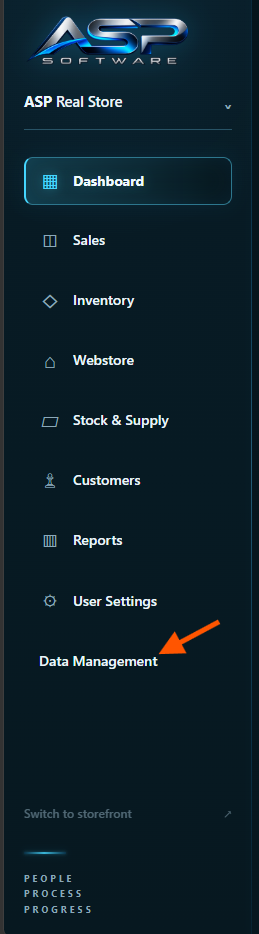
Open Data Management from the ASP sidebar.
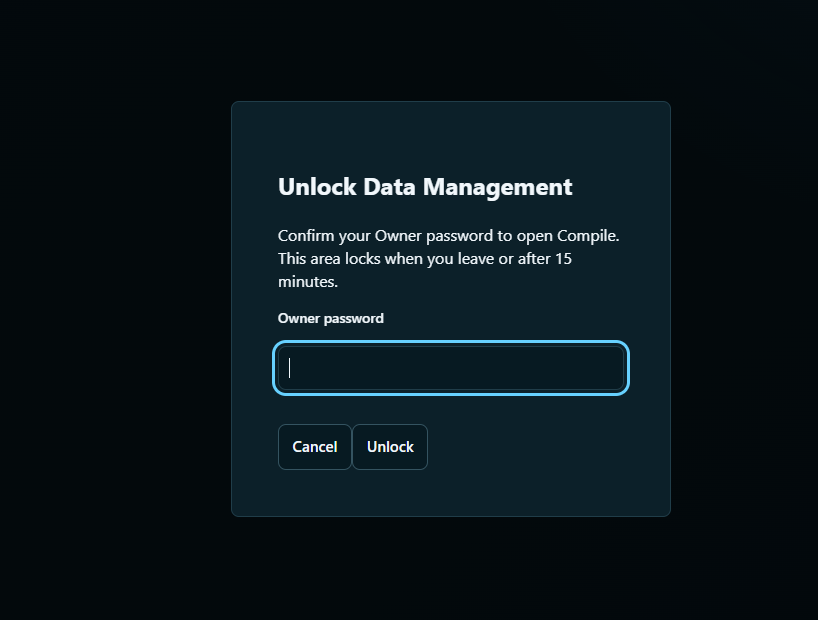
Enter your ASP owner password and click Unlock.
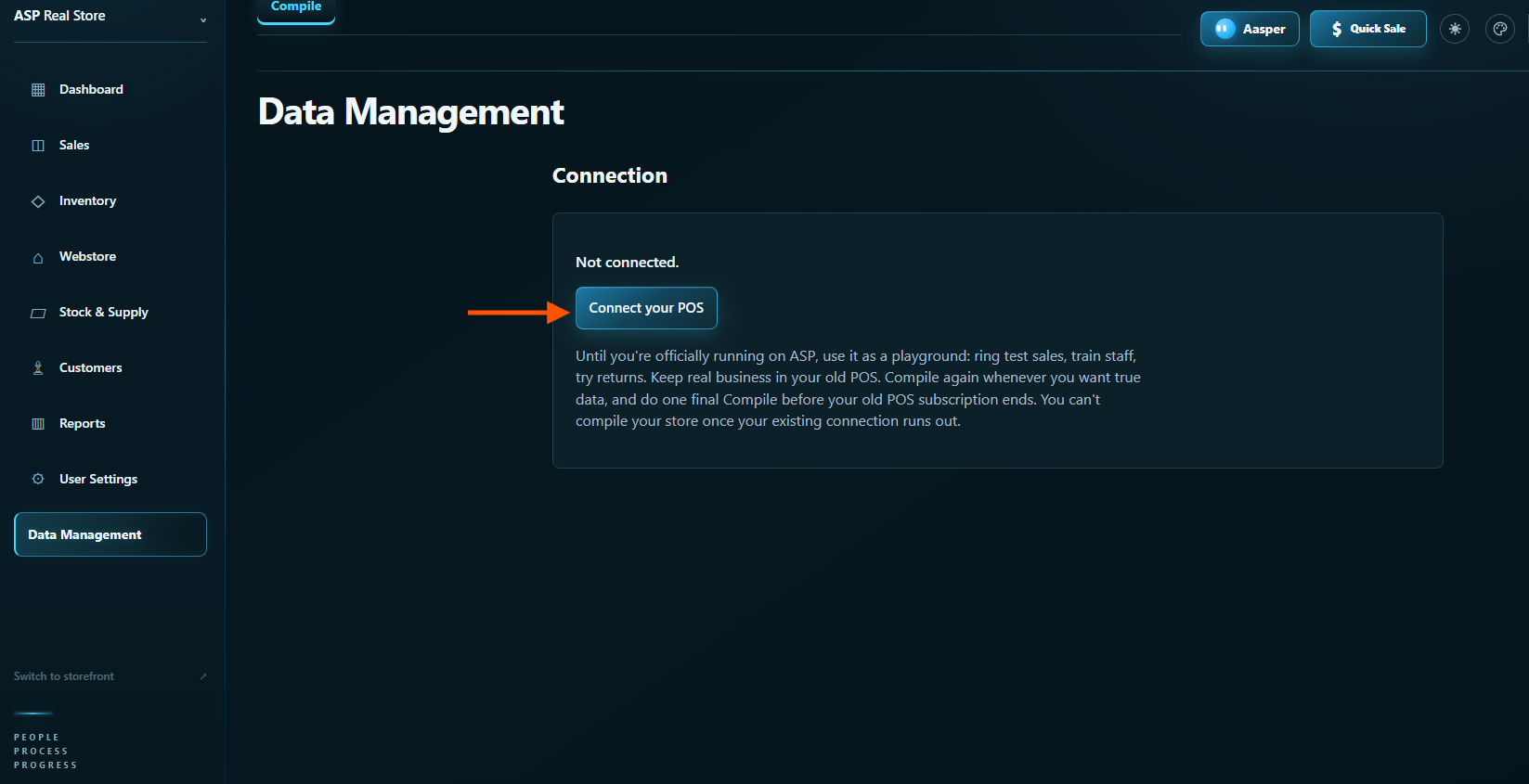
Click Connect your POS.
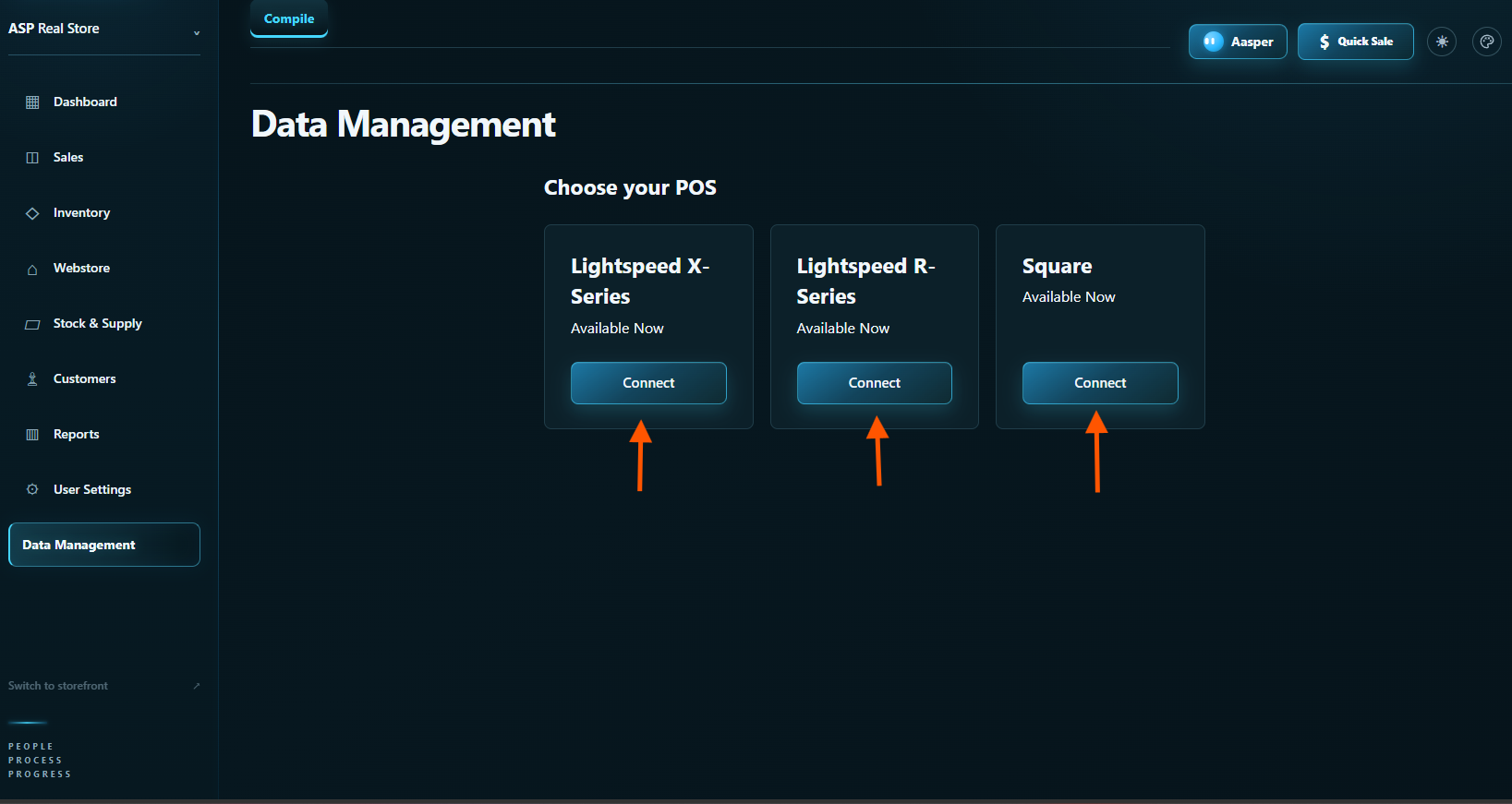
Click Connect under Lightspeed R-Series.
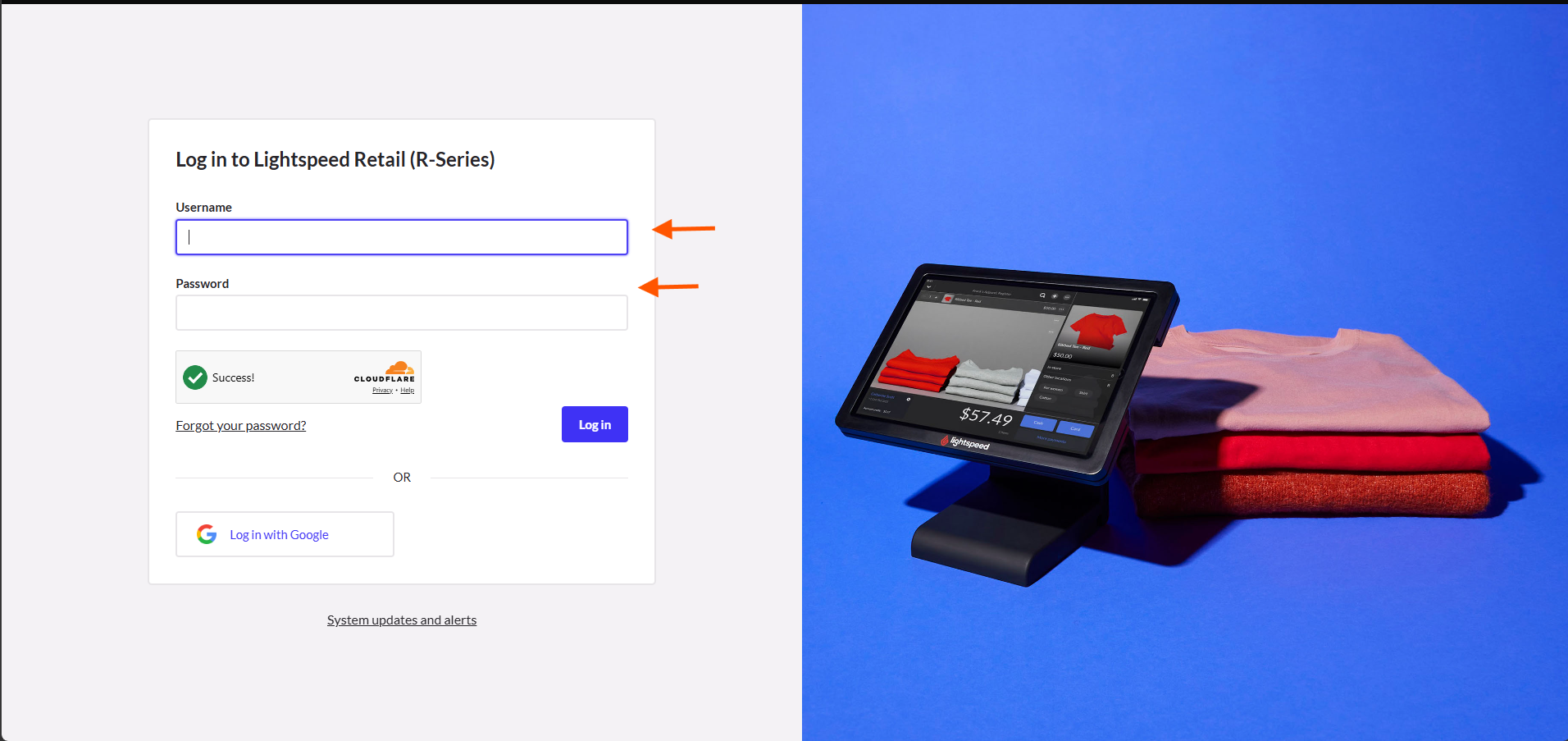
Sign in to Lightspeed as the account owner or an admin.
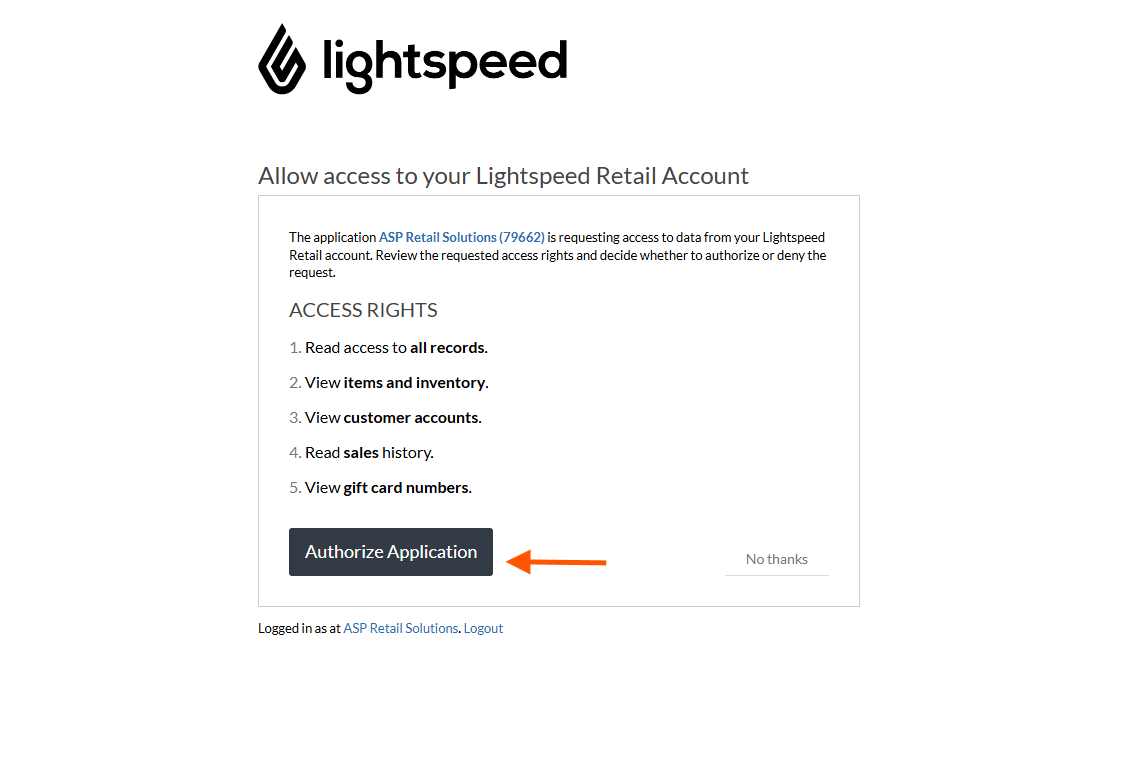
Review the requested permissions and click Authorize Application. ASP requests read access to your Lightspeed data.
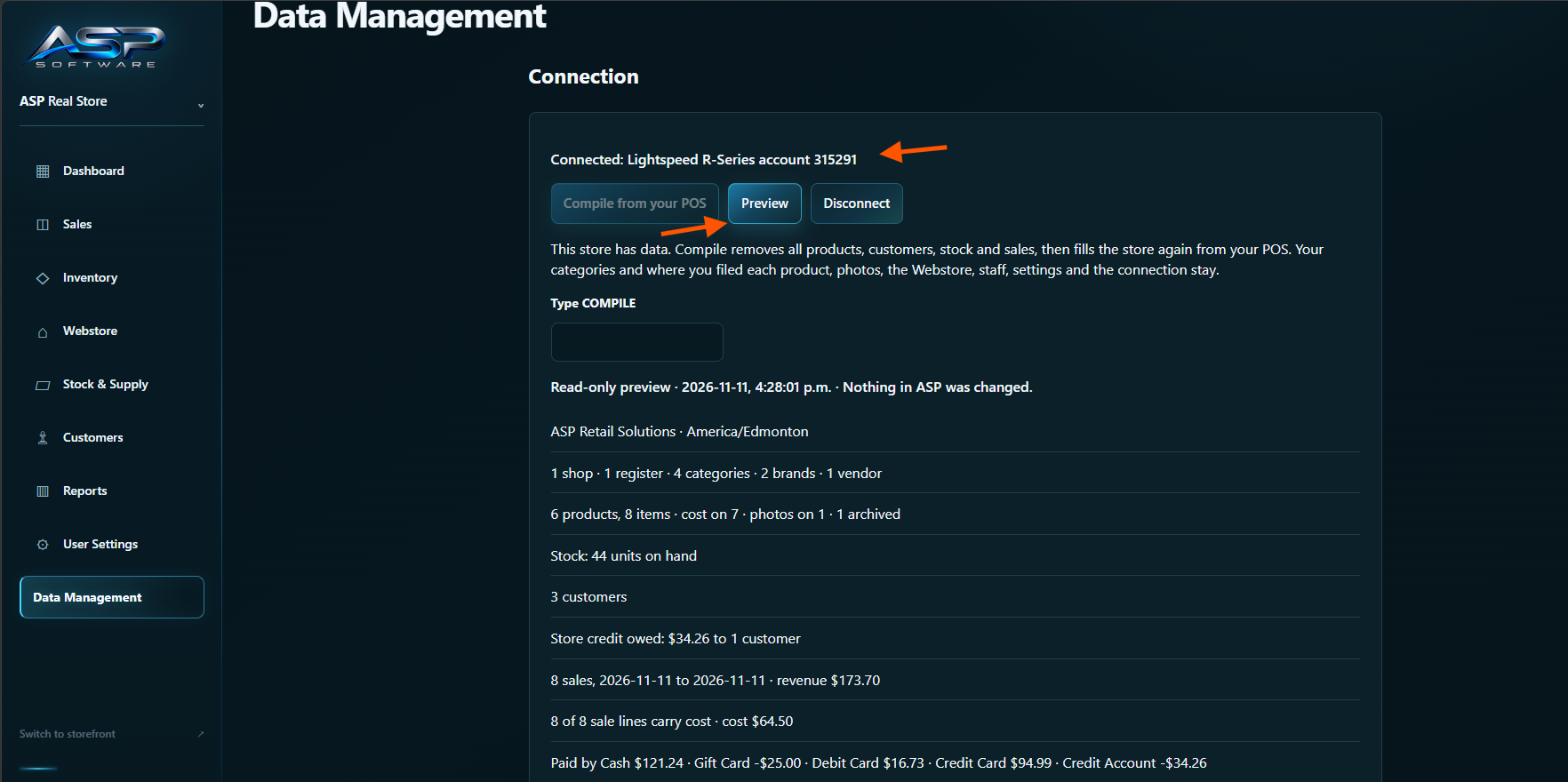
Back in ASP, check that the right account is connected. Click Preview and review what ASP found. Preview leaves your ASP data untouched.
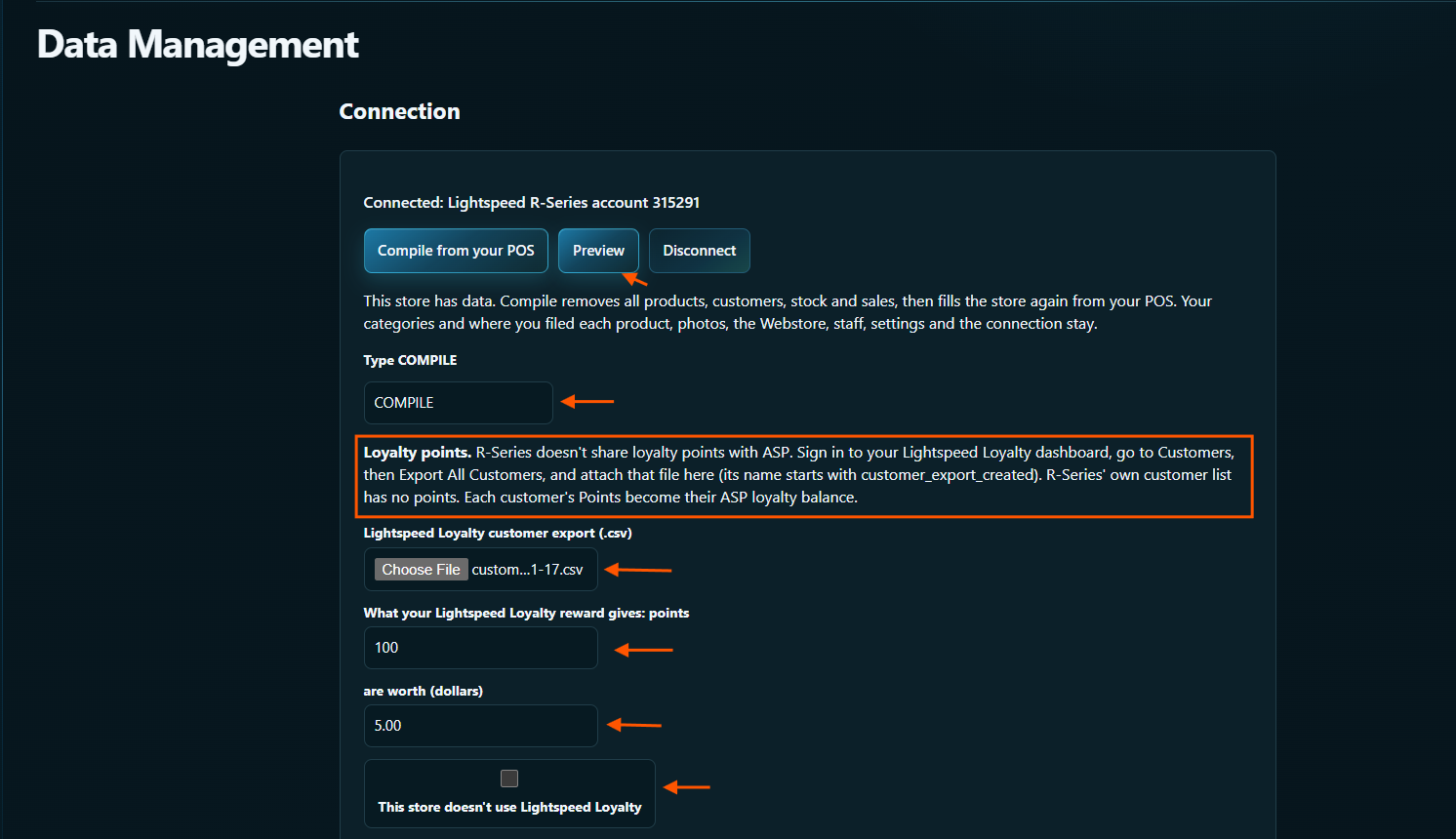
Add your Lightspeed Loyalty points. R-Series doesn’t share loyalty points with other software, so ASP reads them from the customer list your Loyalty account exports. Do this right before you click Compile from your POS, every time you compile.
Sign in to your Lightspeed Loyalty dashboard, go to Customers, then Export All Customers. The file’s name starts with customer_export_created. The customer list in R-Series itself has no points, so it won’t work here.
In ASP, choose that file under Lightspeed Loyalty customer export. Then enter what your Loyalty reward gives: how many points, and what they’re worth in dollars. For example, if 100 points gets a customer $5.00 off, enter 100 and 5.00. ASP turns each customer’s points into their ASP loyalty balance at exactly that value.
No Lightspeed Loyalty? Tick This store doesn’t use Lightspeed Loyalty instead. Compile won’t start until you’ve done one or the other.
Use Compile from your POS for your first import or any later import. If you’re getting familiar with ASP while still selling on your current POS, run Compile again when you’re ready to bring your ASP records up to date.
If your ASP store is empty, click Compile from your POS to import your records.
If your ASP store already has data, review the warning, type COMPILE in the box, then click Compile from your POS. ASP removes its existing products, customers, stock and sales history first, then imports fresh records from your POS.
ASP keeps your setup. Your staff logins and permissions, Webstore and storefront template changes, inventory categories and product family assignments, and uploaded product photos carry forward. You can set up your store while you’re learning ASP and keep that work when you import again.
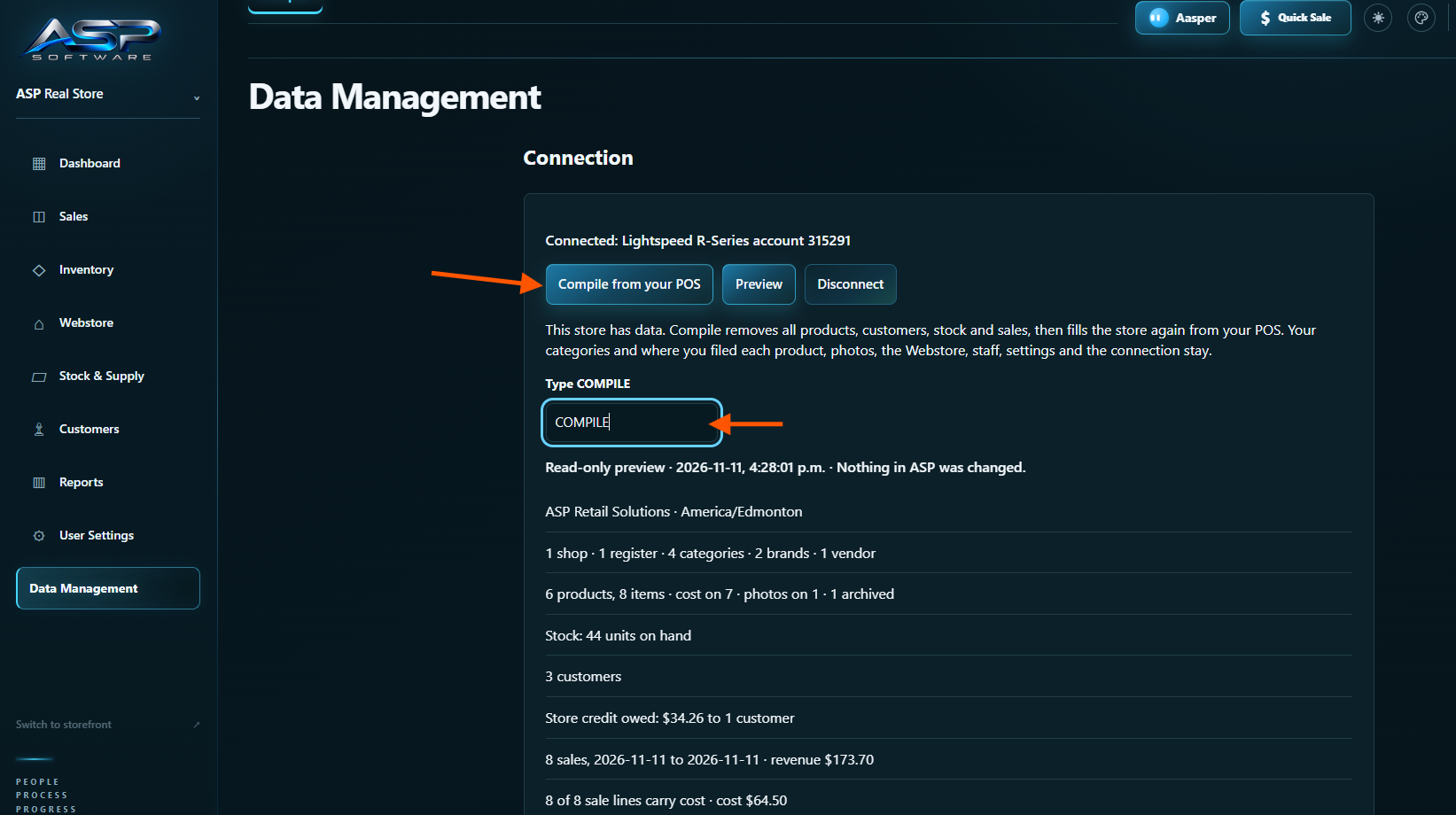
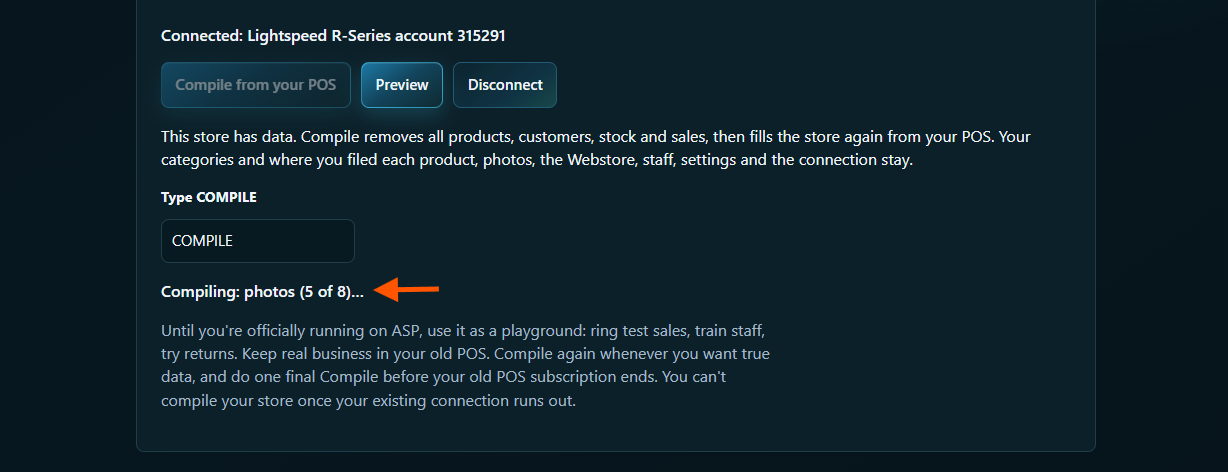
Keep Data Management open while ASP shows the import progress.
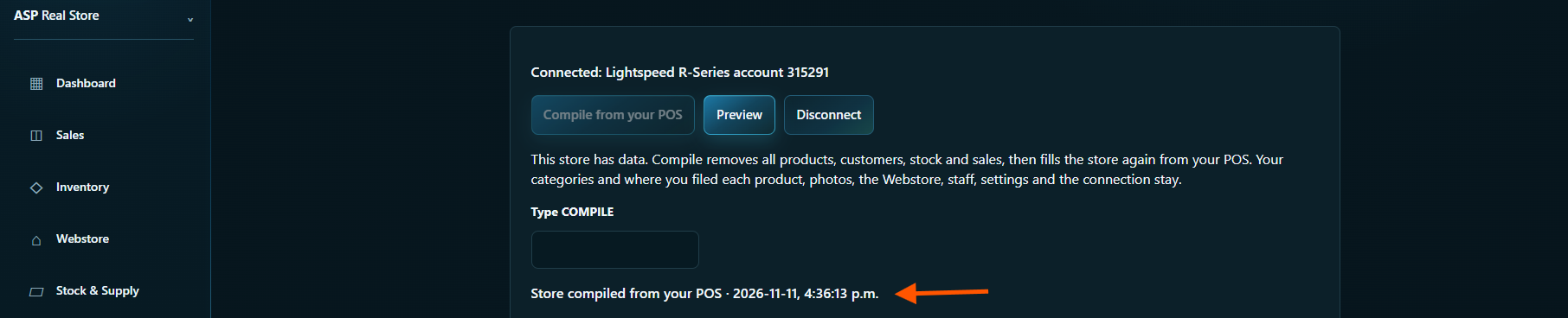
Wait for Store compiled from your POS. That message confirms the import finished.
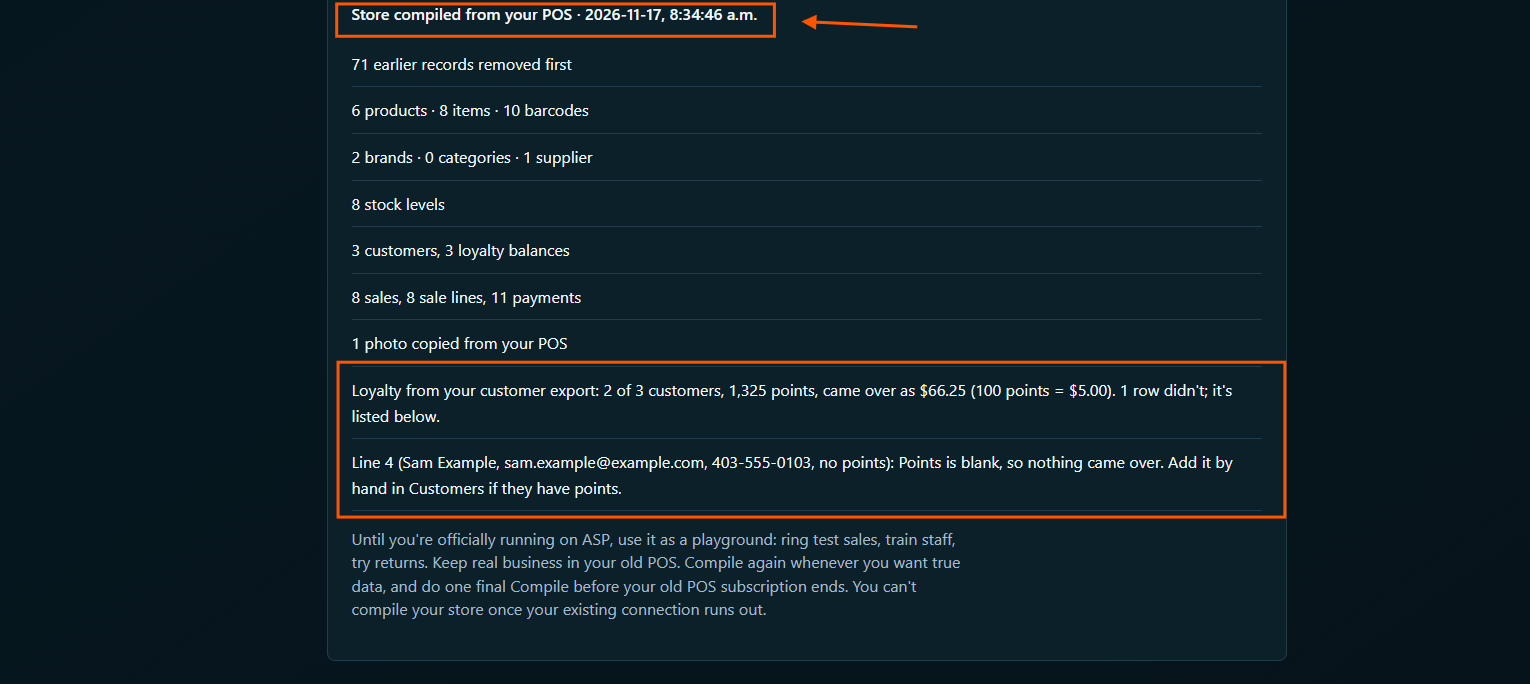
Check the Loyalty from your customer export line. It shows how many customers got their points, the total points and what they came to. Each customer is found by their email first, then their phone number. Any row ASP couldn’t place is listed underneath with its line number from the file, such as a blank Points value, no matching customer, or two customers sharing the same email or phone. ASP never guesses or rounds. Add those few by hand in Customers.
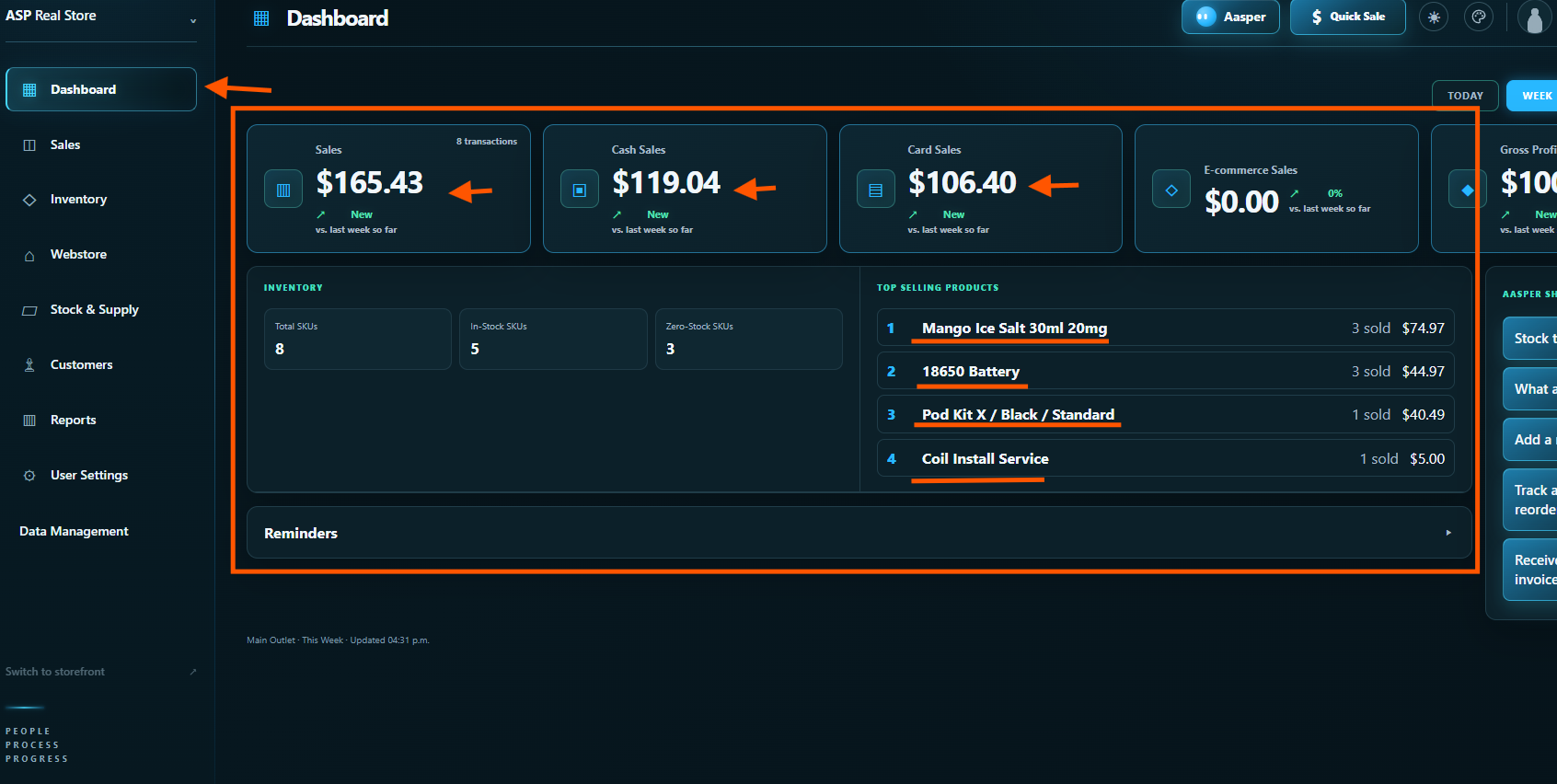
Open Dashboard for a first look at your imported sales and inventory. Check your import before selling.
What ASP imports
- Categories, brands (manufacturers) and suppliers (vendors)
- Products with options, such as colours or sizes, come over as one product with variants. Archived items stay archived.
- SKUs (your custom SKU, or Lightspeed's system ID), barcodes, prices, cost and photos
- Stock at each shop
- Customers, with their store credit, and their Lightspeed Loyalty points from your Loyalty customer export (step 8)
- Completed sales, line by line, with cost and payments. ASP numbers receipts its own way, so each sale keeps a note with its Lightspeed sale number.
What to handle separately
- Gift cards. ASP doesn't have gift cards yet. Compile tells you how many are still open in Lightspeed and their total, so you can keep honouring them.
- Customers who owe the store on account. Compile lists the count and total for your records.
If the import stops, see Before you import.