
Moving from Square
Import your store from Square and see how loyalty balances transfer.
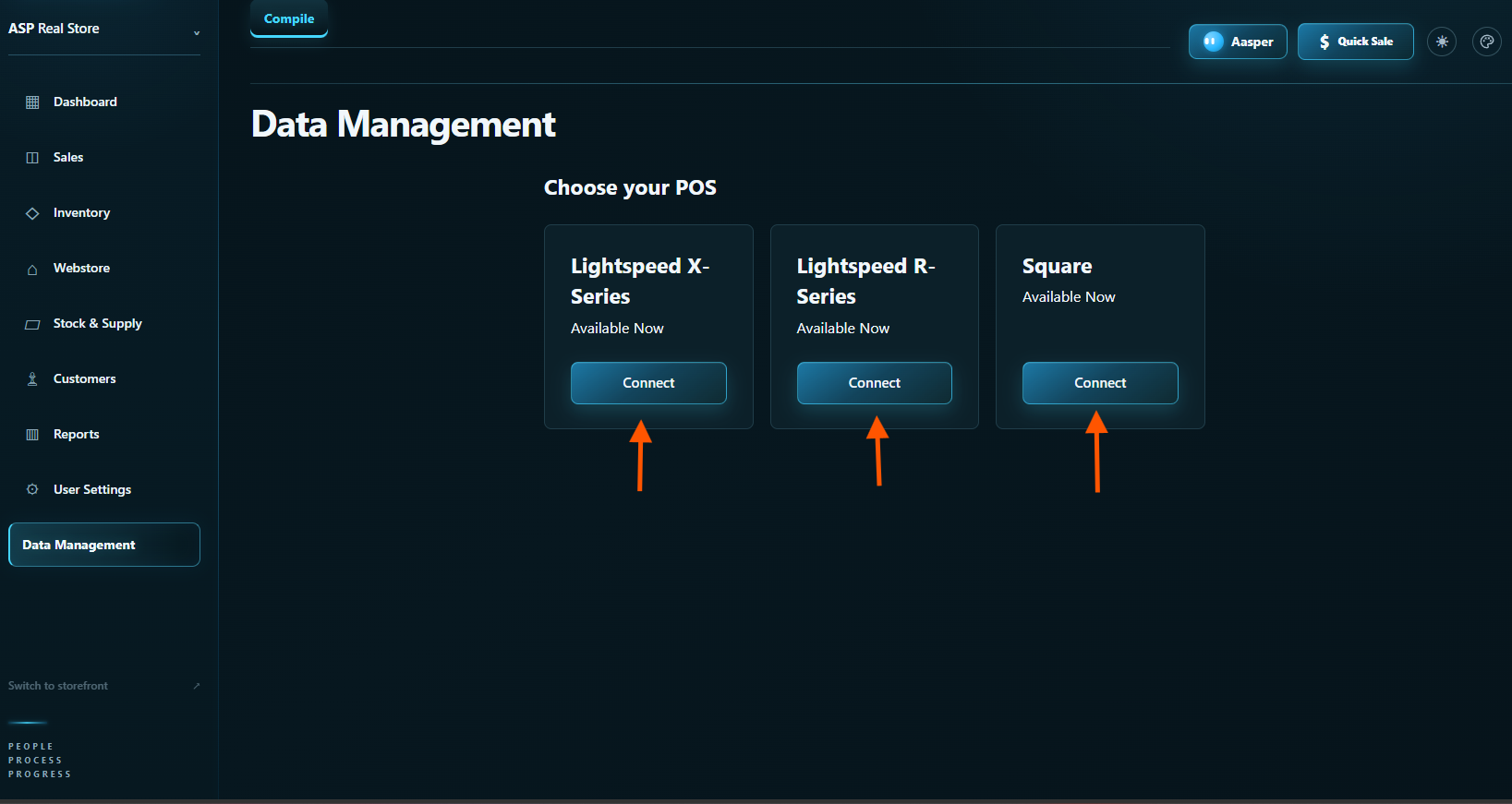
Some ASP screenshots use a Lightspeed example to show the shared steps. Your connection will show Square and your preview will show your own store totals.
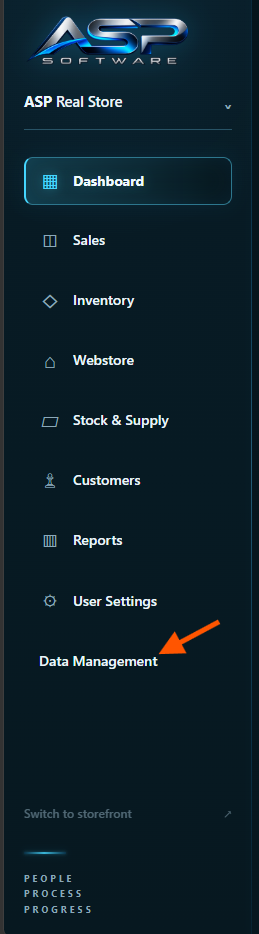
Open Data Management from the ASP sidebar.
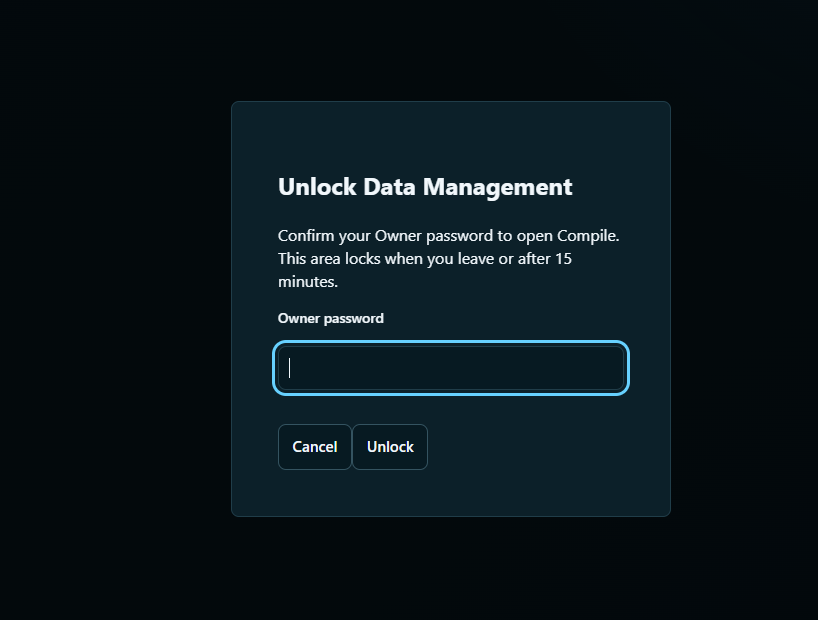
Enter your ASP owner password and click Unlock.
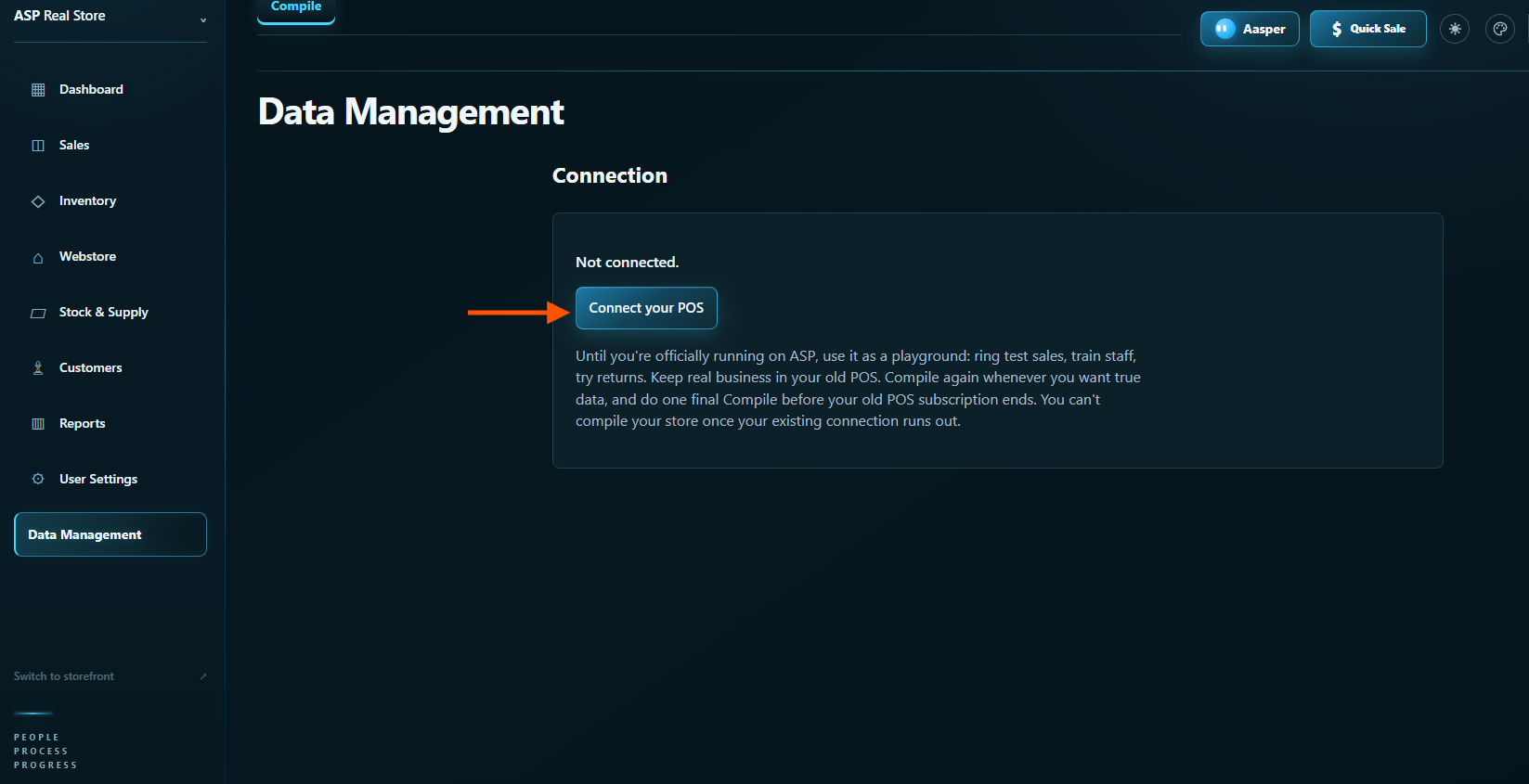
Click Connect your POS.
Click Connect under Square.
Enter your Square email or phone number and click Continue.
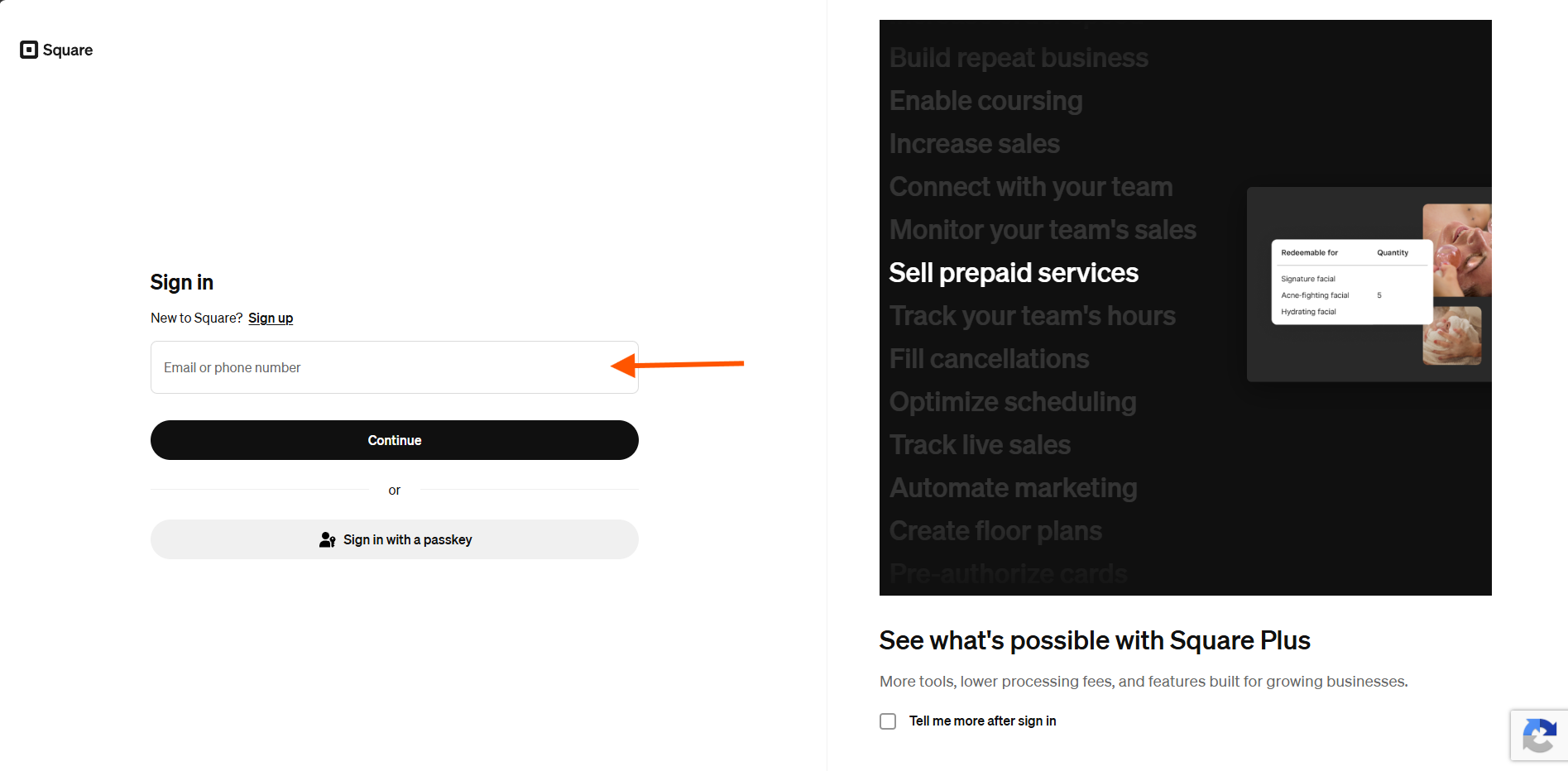
Enter your Square password and click Sign in.
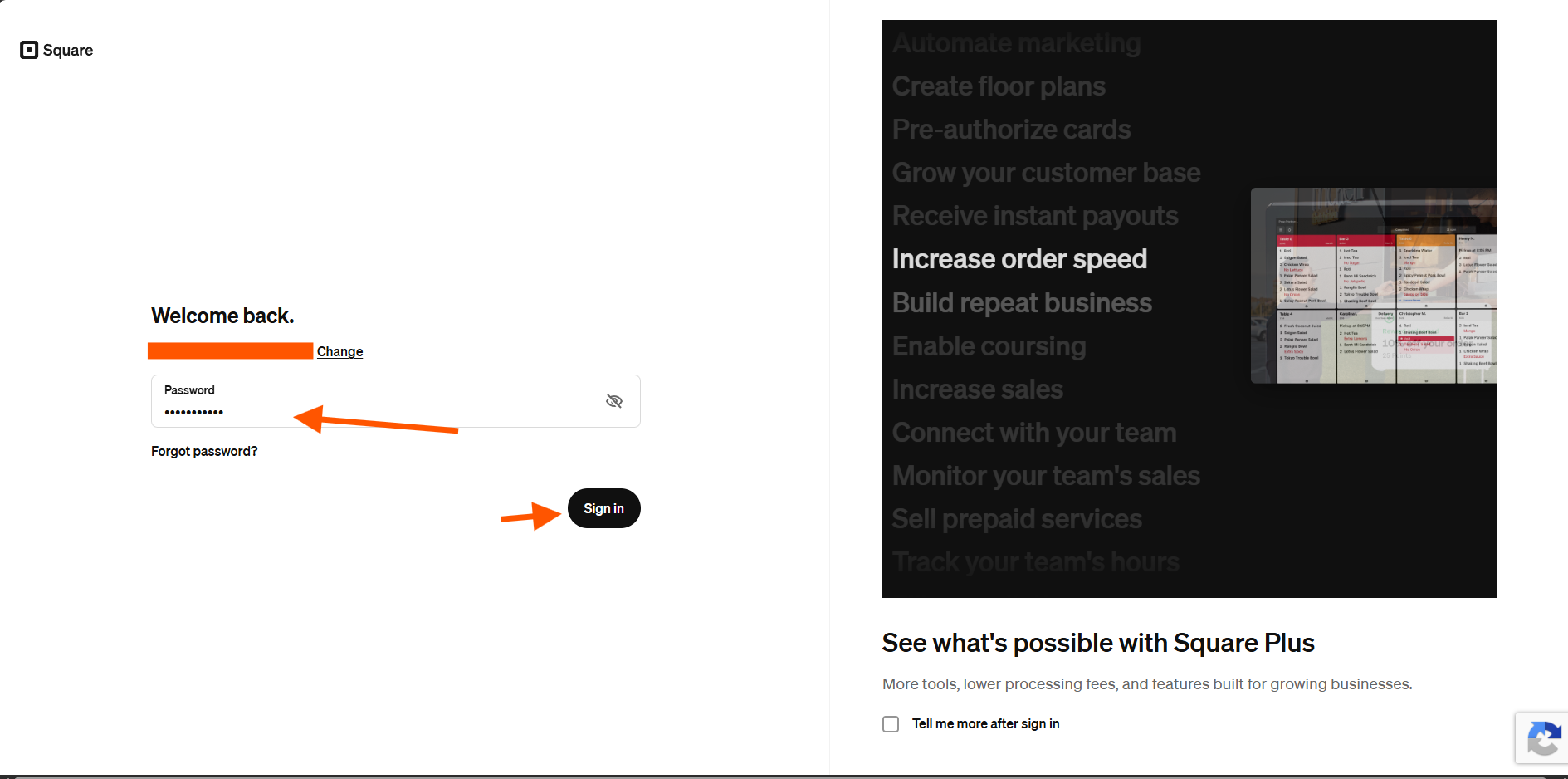
Review the permissions Square lists, then click Allow to give ASP read access.
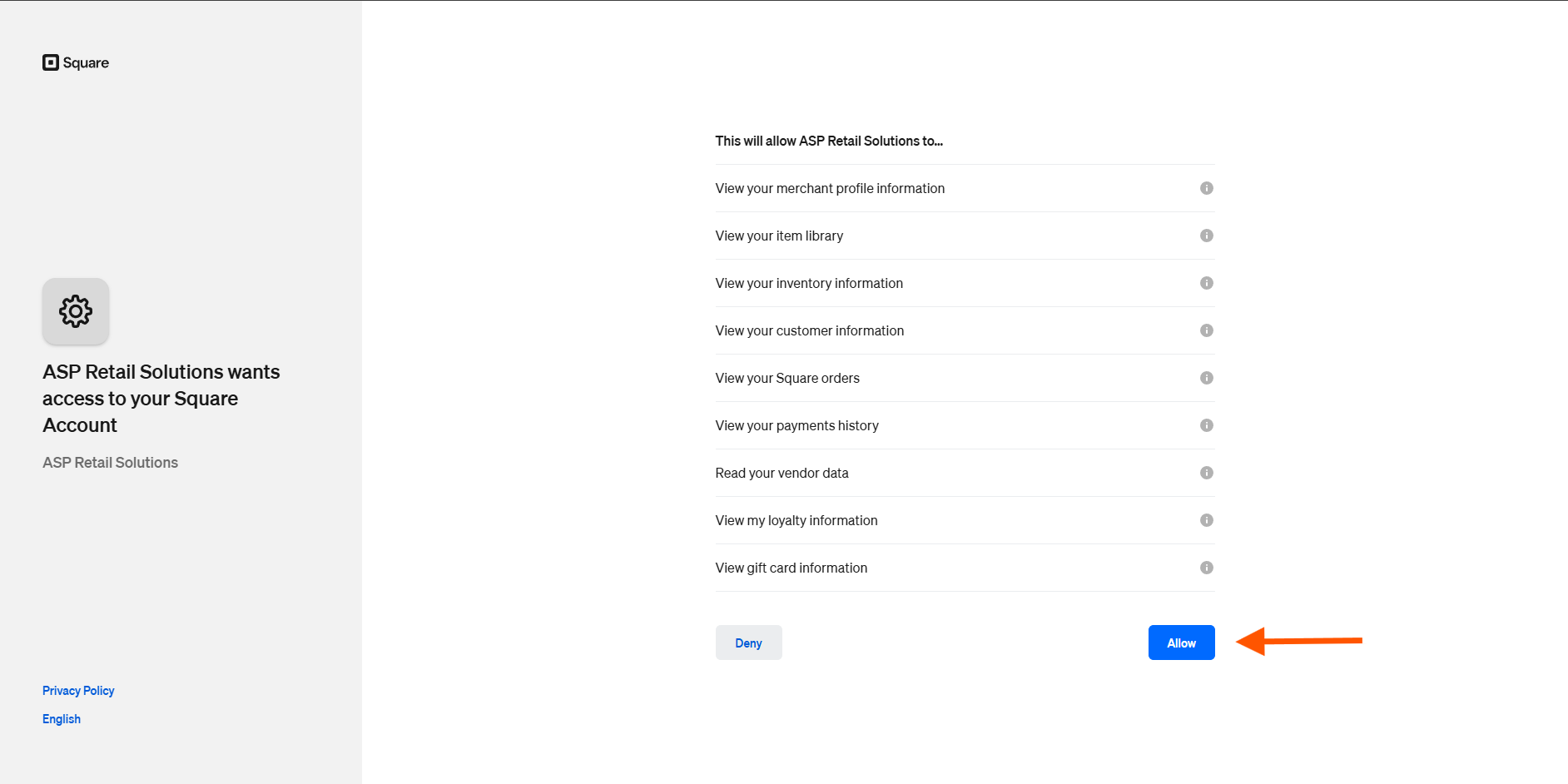
Back in ASP, confirm Square is connected. Click Preview and review the counts before importing.

Use Compile from your POS for your first import or any later import. If you’re getting familiar with ASP while still selling on your current POS, run Compile again when you’re ready to bring your ASP records up to date.
If your ASP store is empty, click Compile from your POS to import your records.
If your ASP store already has data, review the warning, type COMPILE in the box, then click Compile from your POS. ASP removes its existing products, customers, stock and sales history first, then imports fresh records from your POS.
ASP keeps your setup. Your staff logins and permissions, Webstore and storefront template changes, inventory categories and product family assignments, and uploaded product photos carry forward. You can set up your store while you’re learning ASP and keep that work when you import again.
Keep Data Management open while ASP shows the import progress.
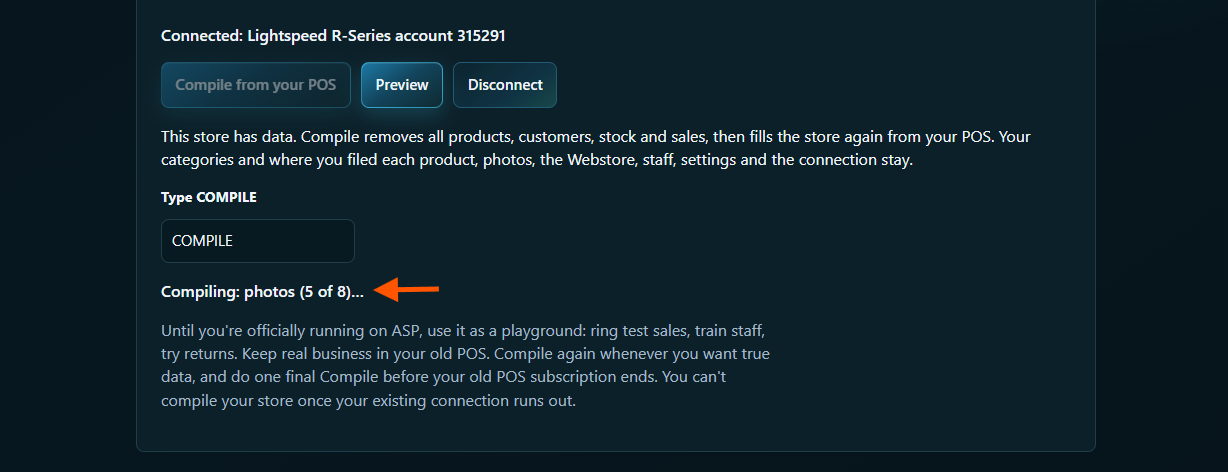
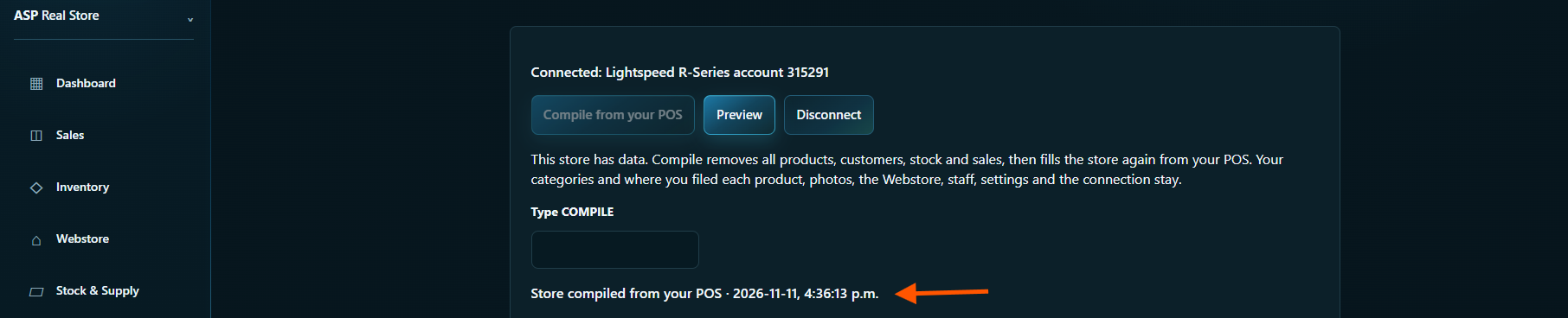
Wait for Store compiled from your POS. That message confirms the import finished.
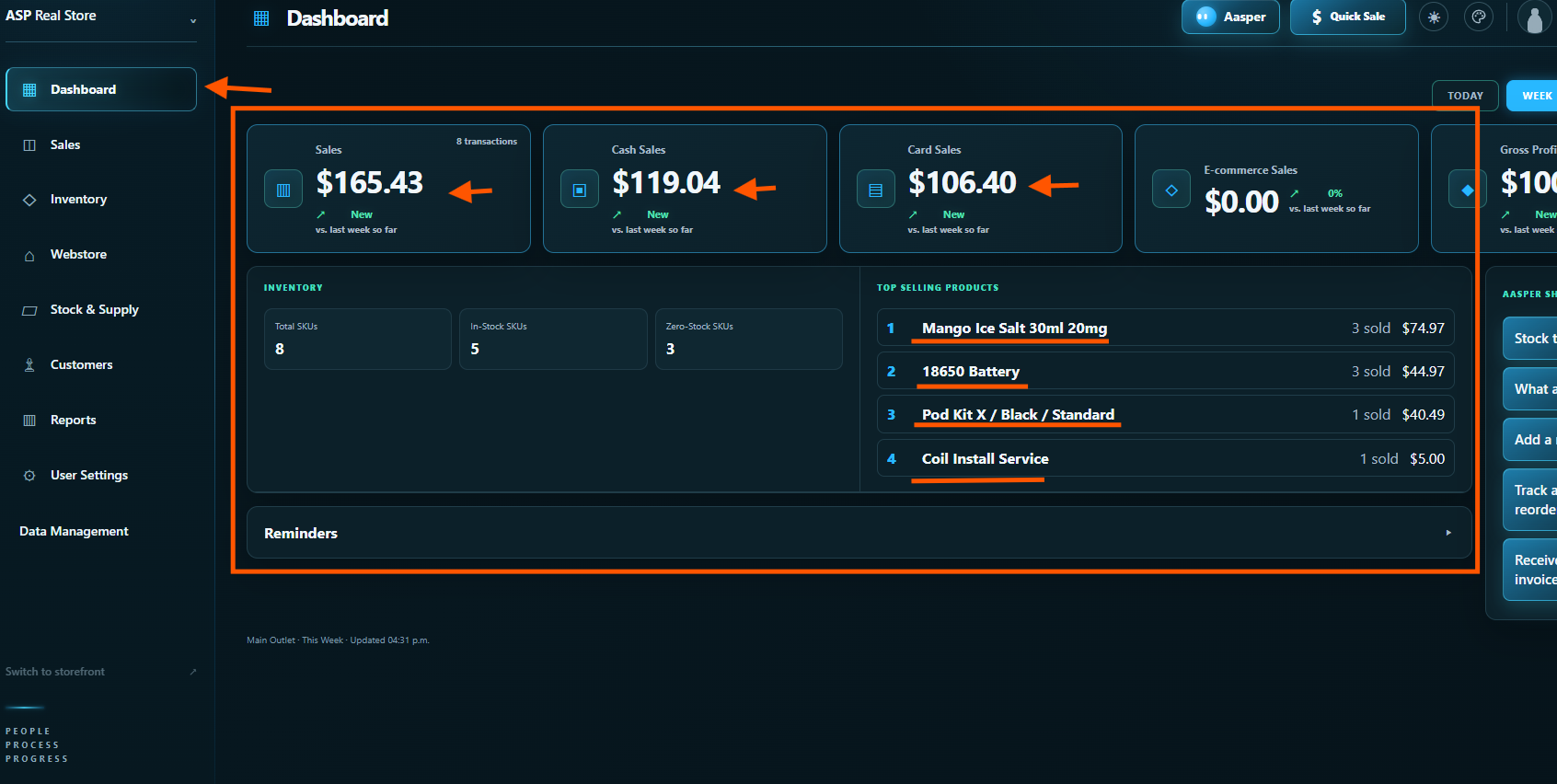
Open Dashboard for a first look at your imported sales and inventory. Check your import before selling.
What ASP imports
- Categories, products and variants, with SKUs, barcodes, prices and any available costs and photos
- Stock at each location, and your vendors as suppliers
- Customers
- Your sales history, with payments
Square Loyalty
- Fixed-dollar rewards. ASP converts points to their dollar value. For example, 100 points worth $5 become a $5 balance. Customers earn at the same rate as in Square.
- Percentage rewards. These points have no fixed dollar value. Balances start at $0.00 in ASP. Compile shows how many customers had points so you can add balances manually.
- No Square Loyalty. ASP leaves loyalty turned off.
What to handle separately
- Square gift cards. ASP doesn't have gift cards yet, so keep honouring them from Square.
If the import stops, see Before you import.