Add a staff member
Give each staff member their own login with the right role.
Each person who uses ASP gets their own login, so every sale shows who made it.
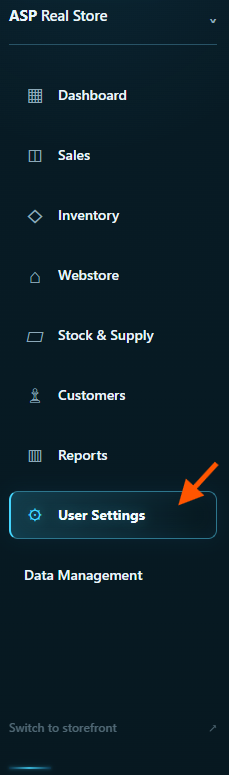
Sign in as the owner and open User Settings in the sidebar.
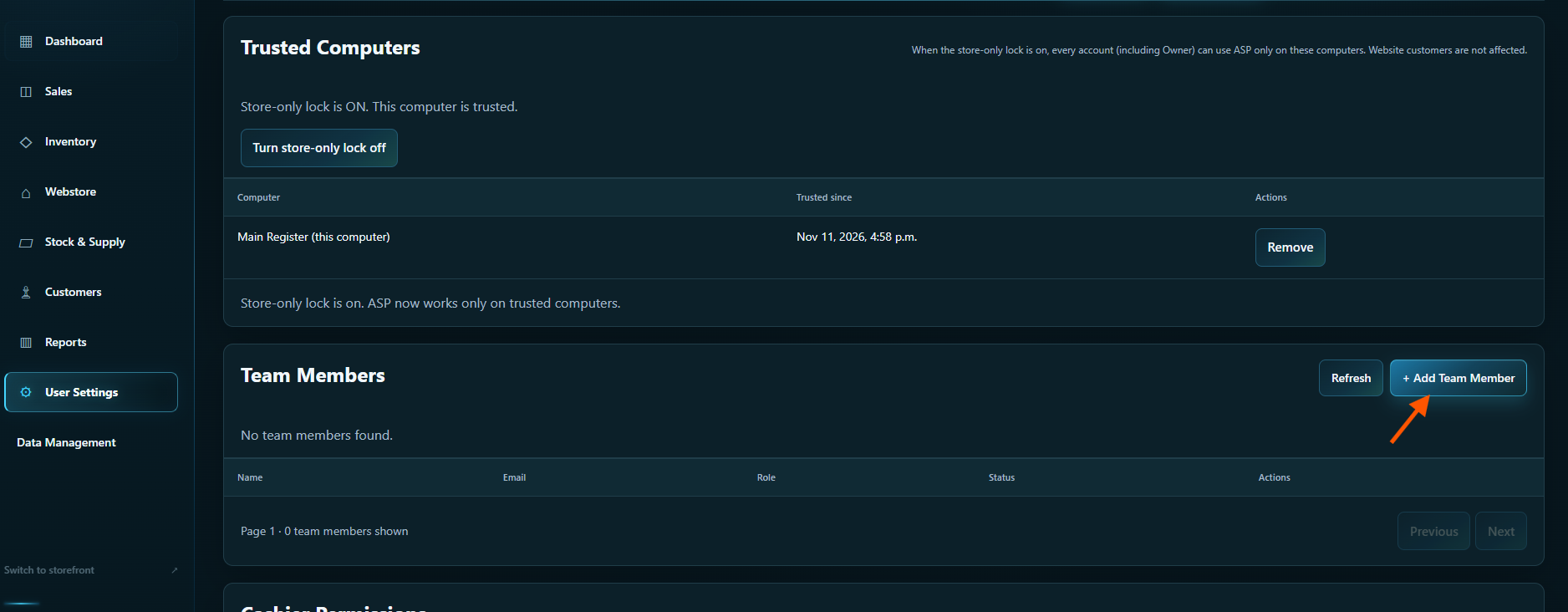
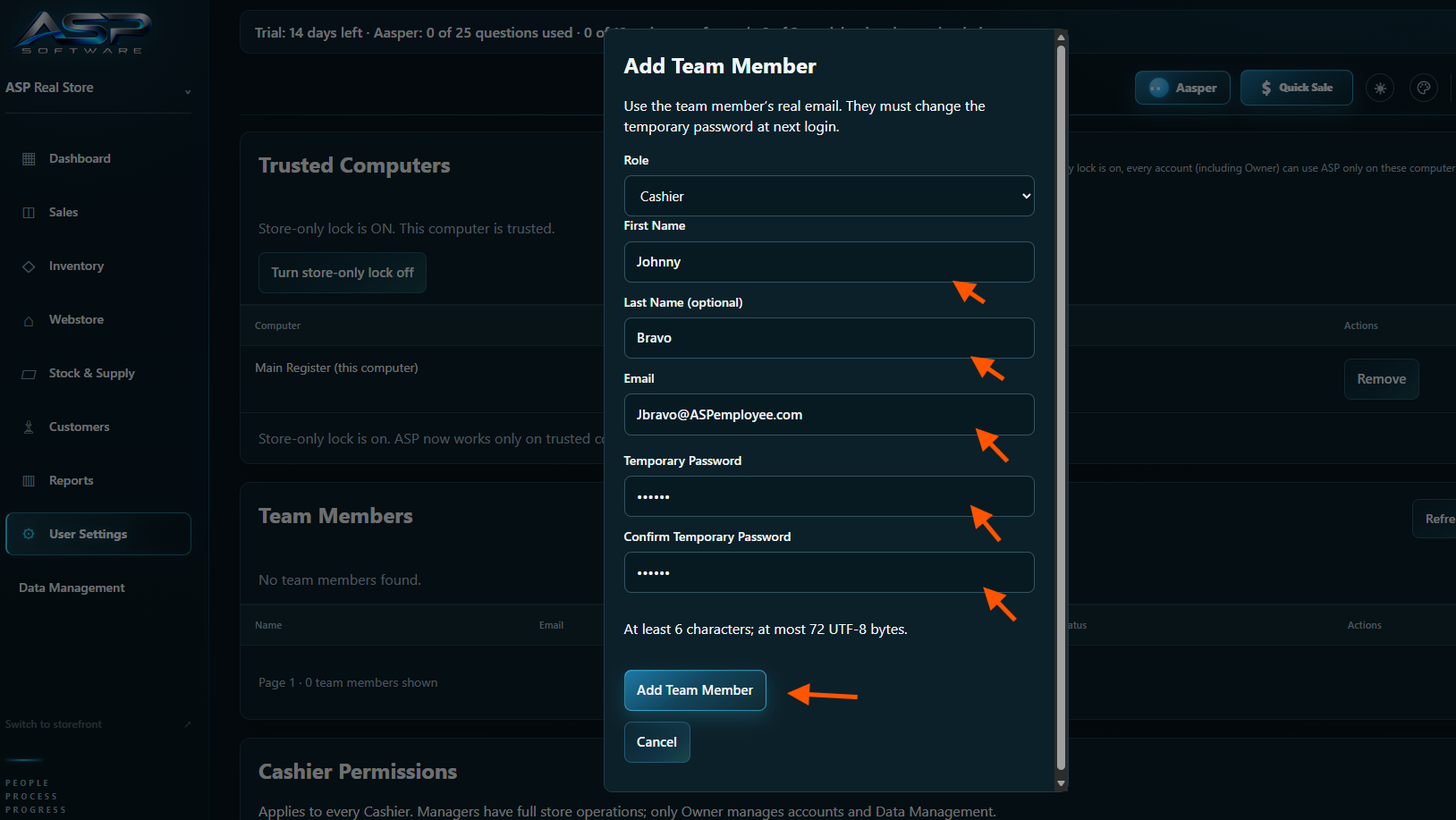
Under Team Members, click + Add Team Member.
Choose Cashier for register staff or Manager for staff who run store operations.
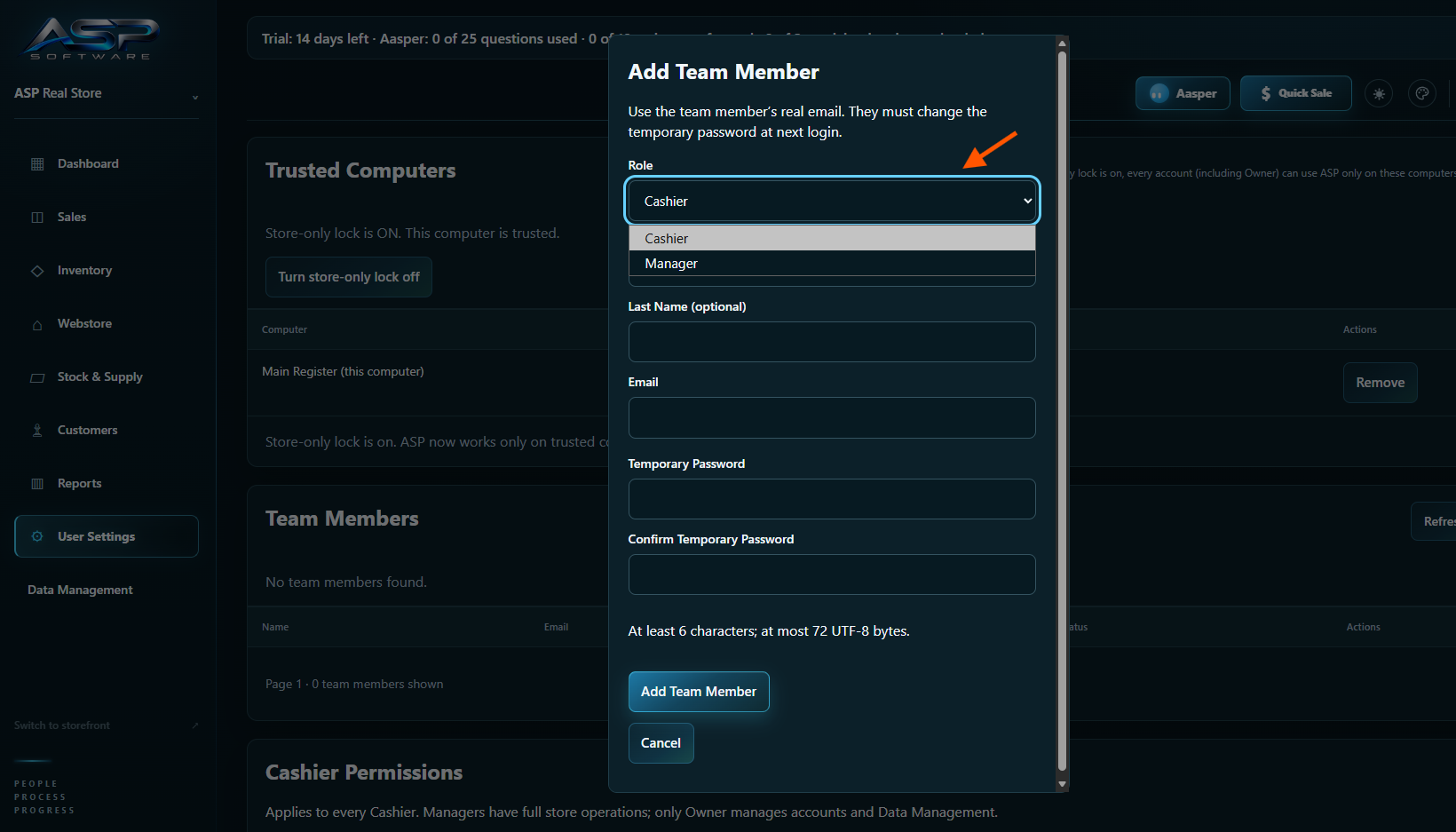
Enter their name and email, set and confirm a temporary password, then click Add Team Member.
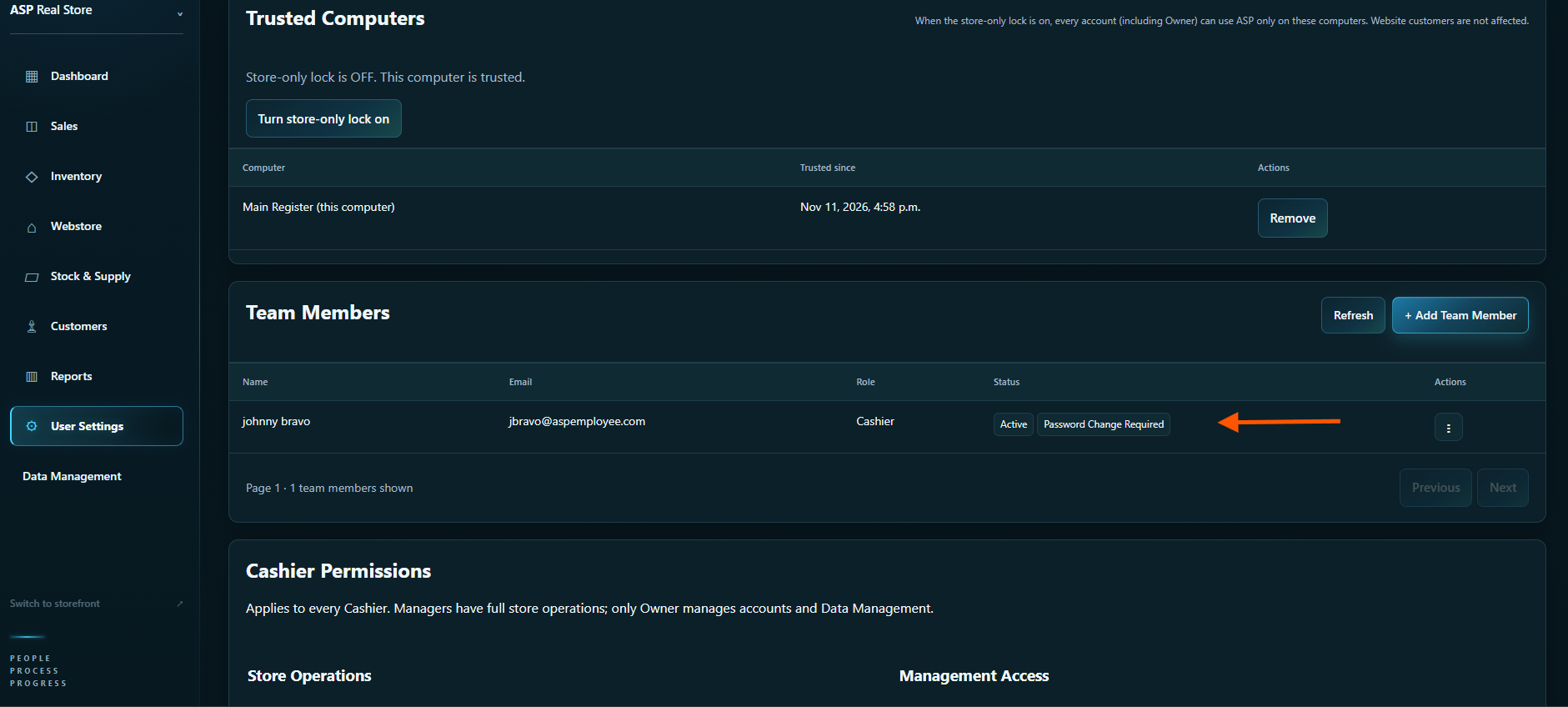
Check that the team member appears in the list. Give them their temporary password. Password Change Required means they’ll choose a new password the first time they sign in.
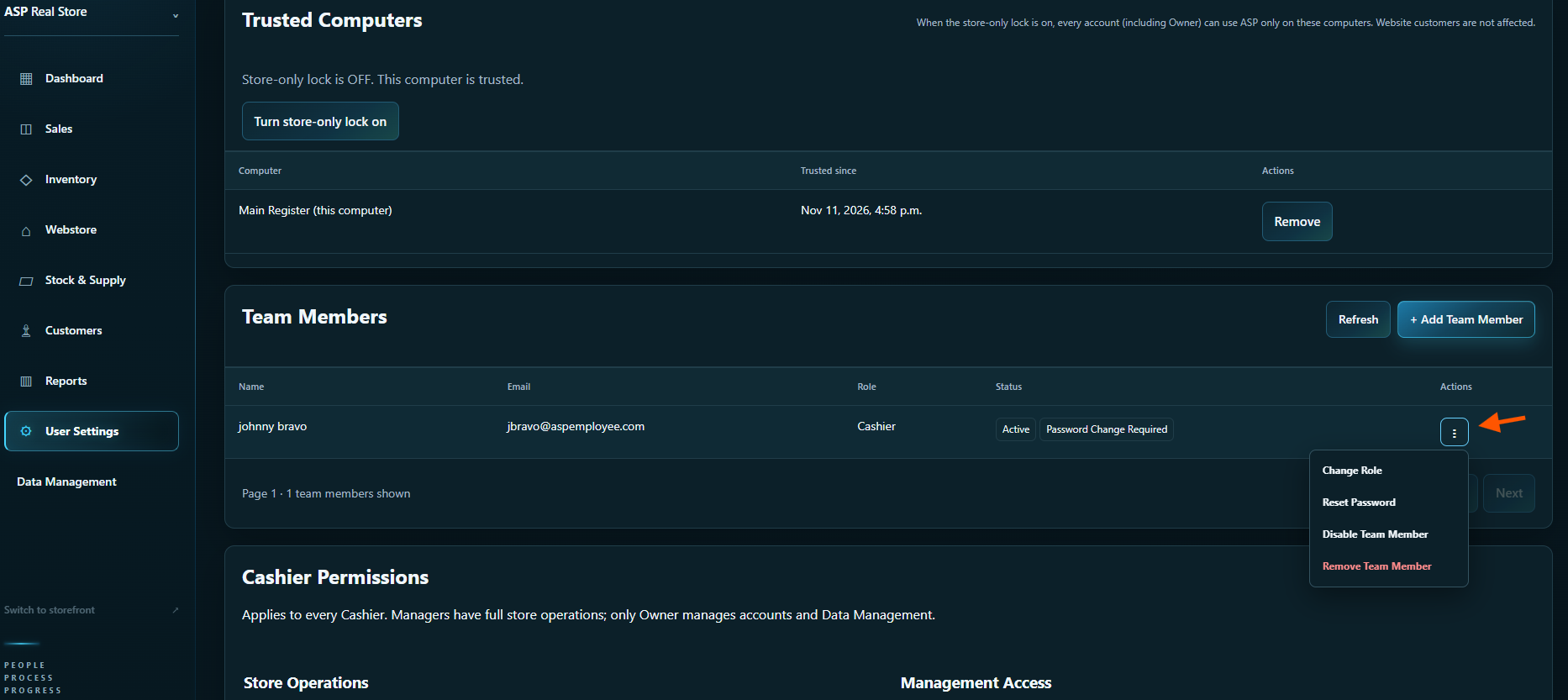
Open the three-dot menu beside the team member to Change Role, Reset Password, or Disable Team Member. Disabling their login keeps their sales in your history.
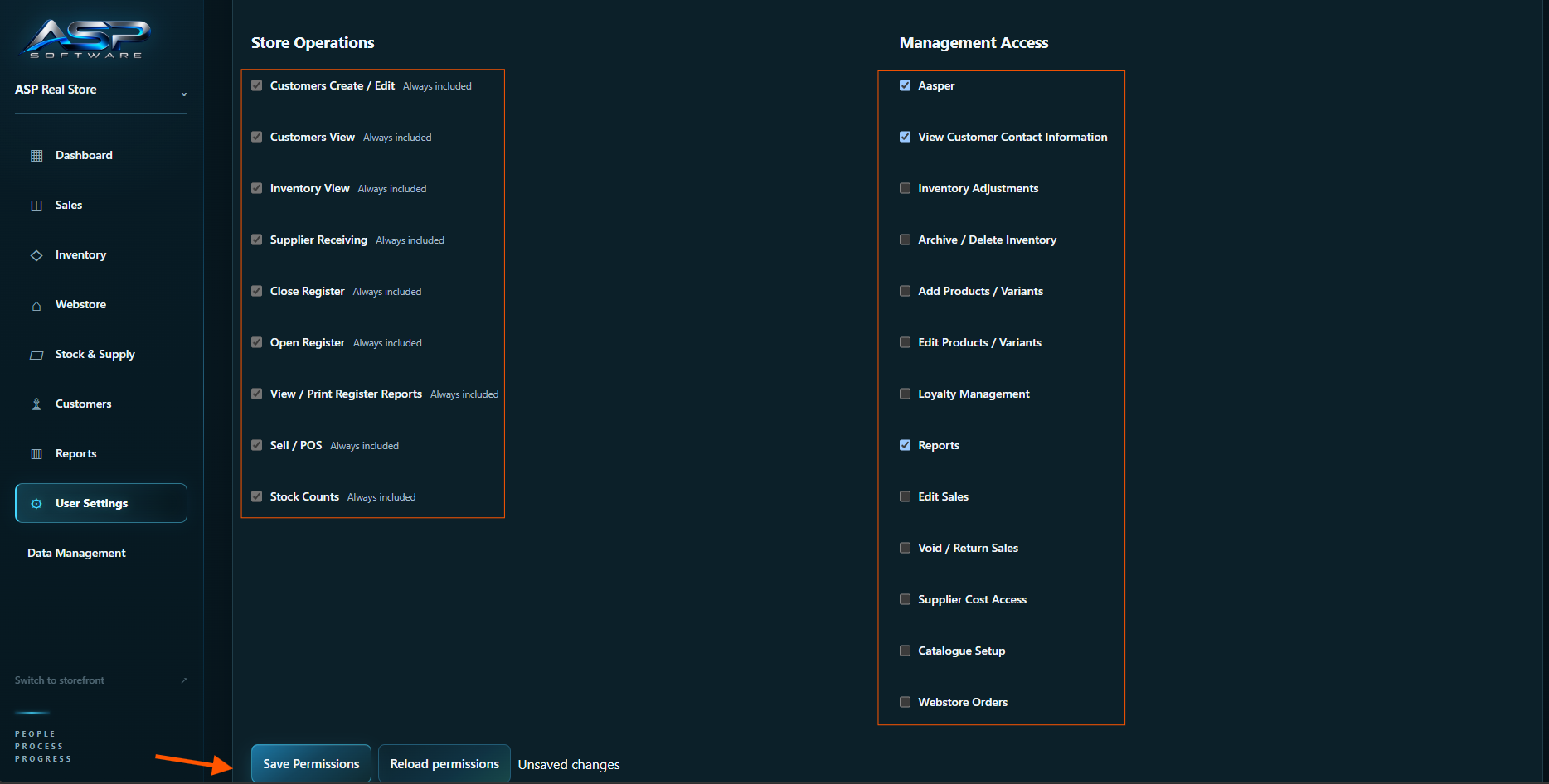
Under Cashier Permissions, choose which Management Access options cashiers can use, then click Save Permissions. These choices apply to every cashier. Store Operations permissions are included automatically.