
Import your store or start fresh
Import your existing records or add your products in Inventory.
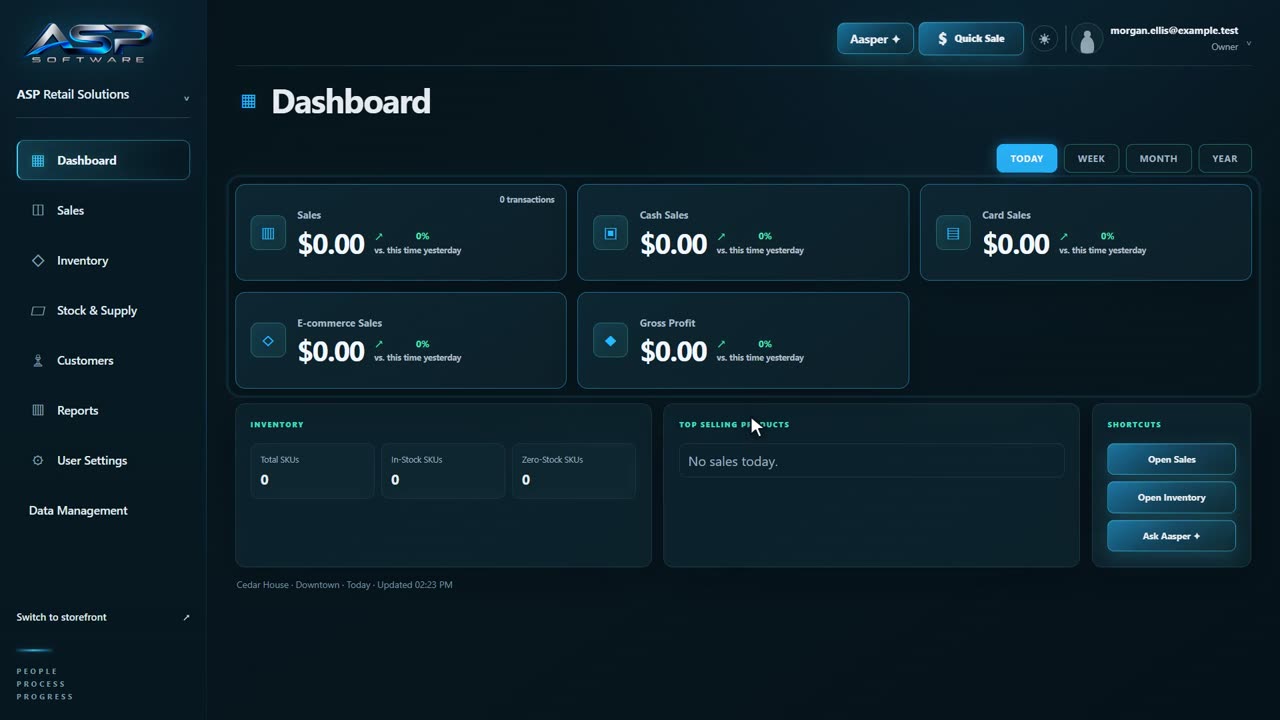
Already using Lightspeed or Square? Open Data Management to import your store. Starting fresh? Add your products in Inventory, then add customers as they come in.
Import from your POS
- In Data Management, choose your POS and click Connect. Sign in to your POS and approve read-only access.
- Click Preview to see what ASP found. Fix any flagged issues in your old POS, then run Preview again.
- If your ASP store already has data, compiling replaces its products, customers, stock and sales history. Review the warning on screen, then click Compile from your POS when ready.
Keep the page open until the import finishes. See Moving from your old POS for what transfers from each system.
Import again on switch day
You can run Compile again when you’re ready to switch. Close any open register and resolve any waiting Webstore orders first. ASP asks you to type COMPILE and enter the owner password before replacing existing data.