
Limit ASP access to trusted computers
Choose which computers can access ASP with the optional store-only lock.
If you want staff to sign in only on approved computers, turn on the store-only lock. Only the owner can turn it on or off.
Trust your store computer
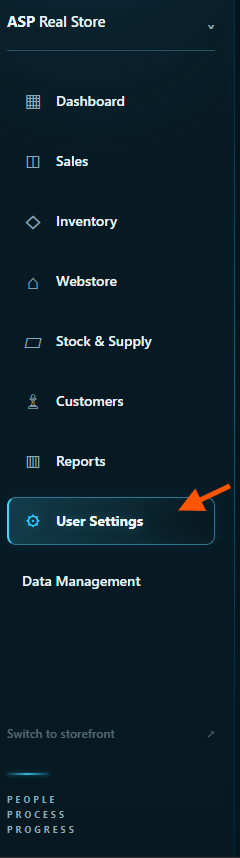
On the computer you want to trust, sign in as the owner and open User Settings in the sidebar.
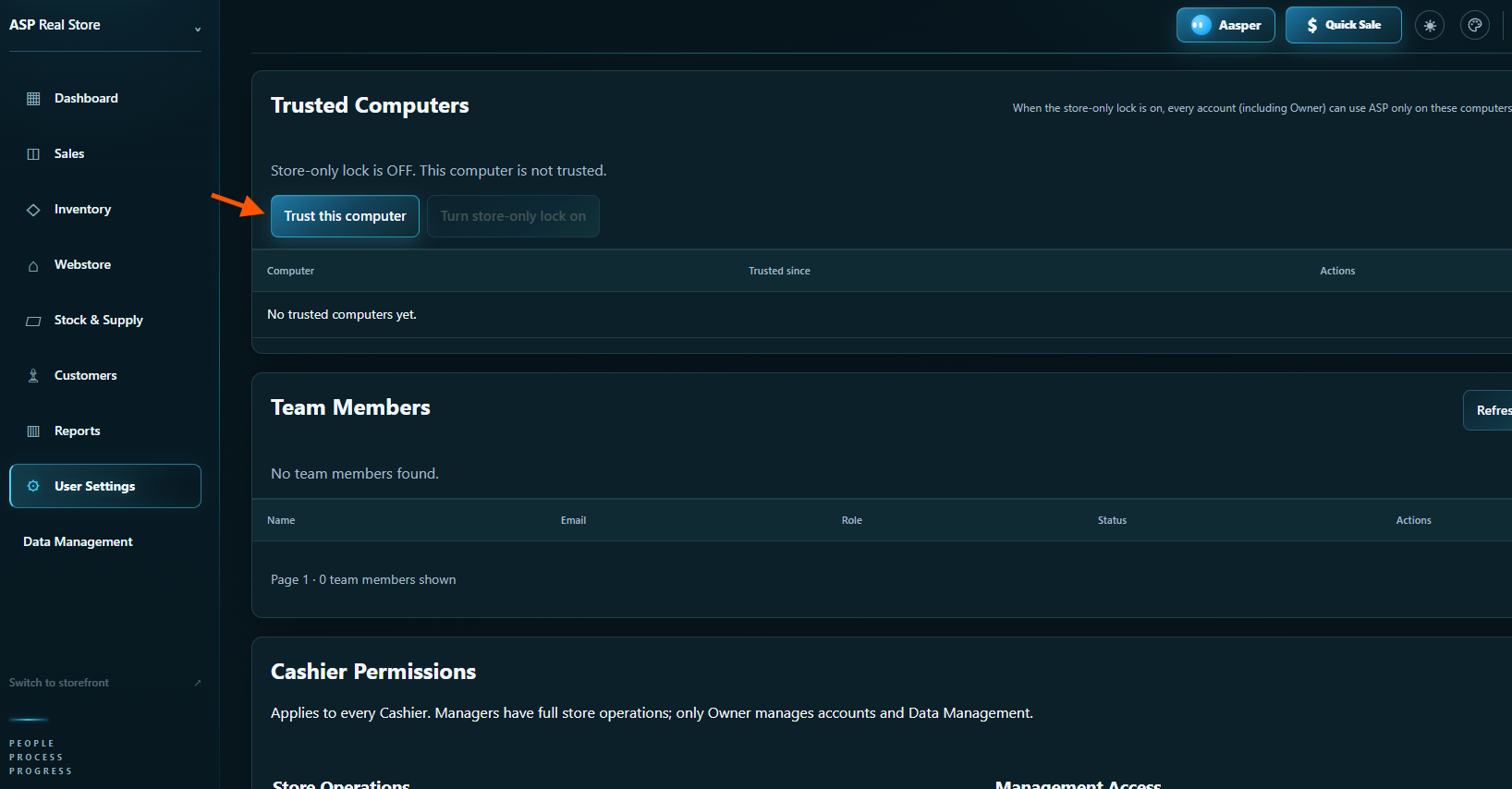
Under Trusted Computers, click Trust this computer.
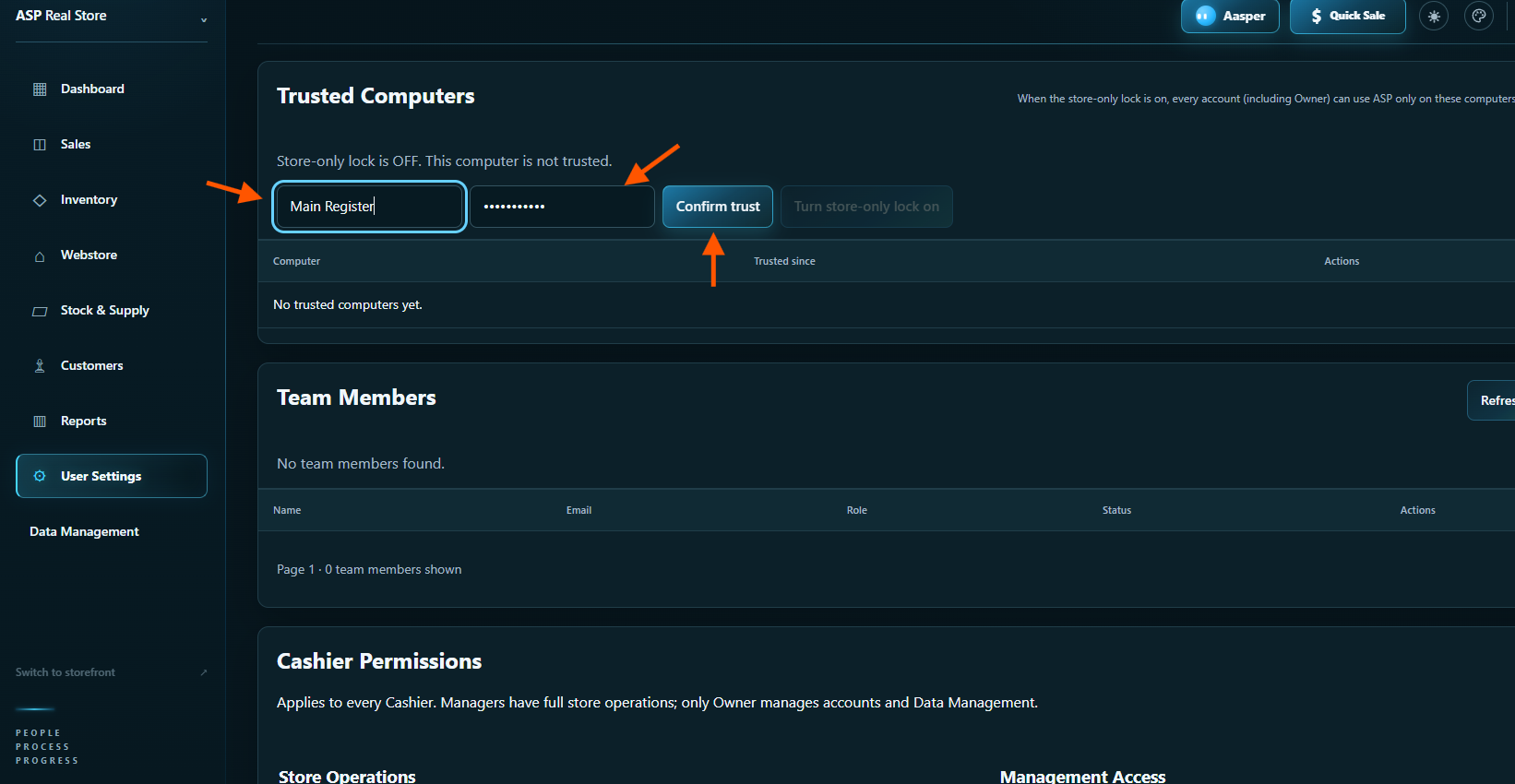
Give the computer a name, such as Main Register. Enter your owner password and click Confirm trust.
Turn on the store-only lock
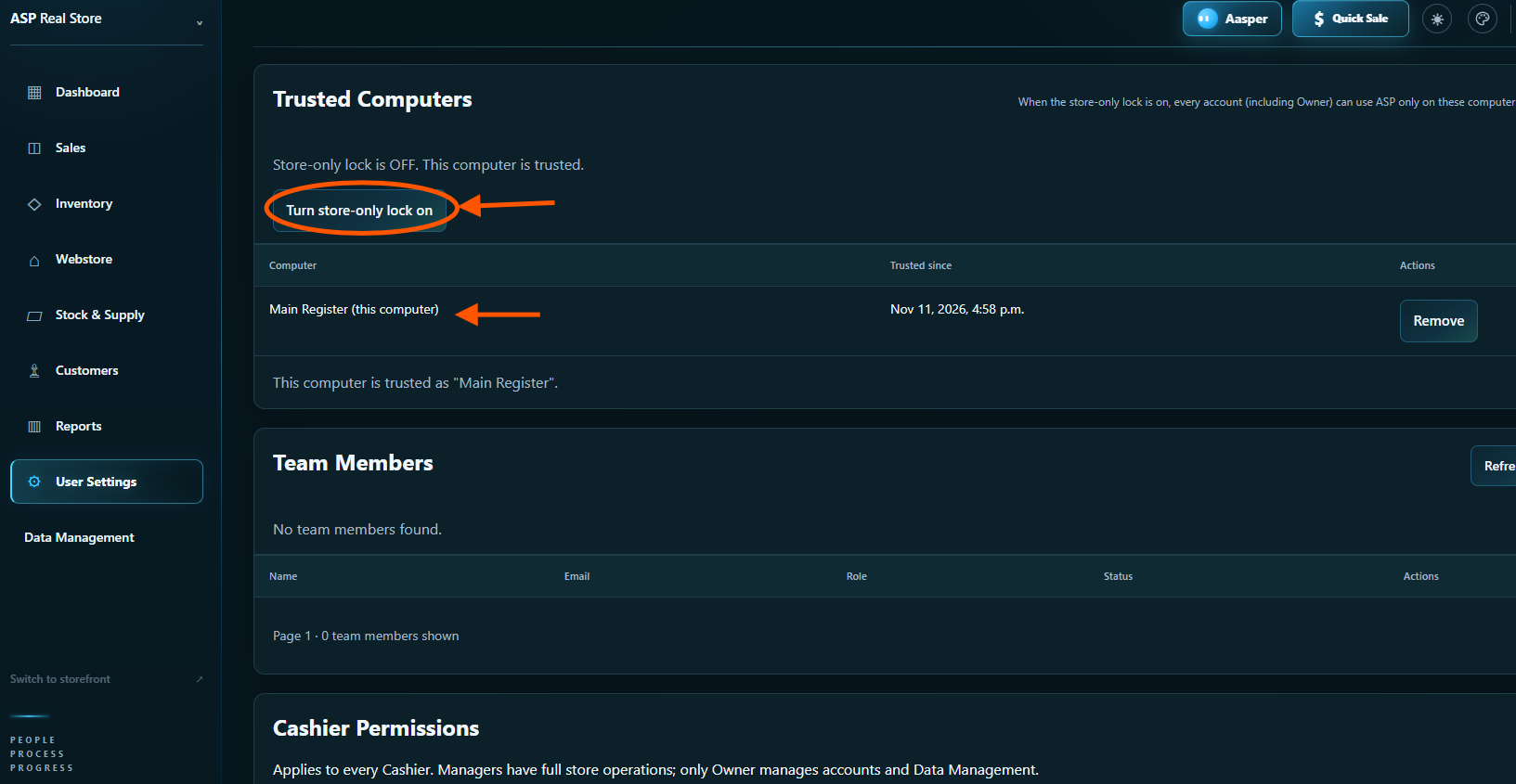
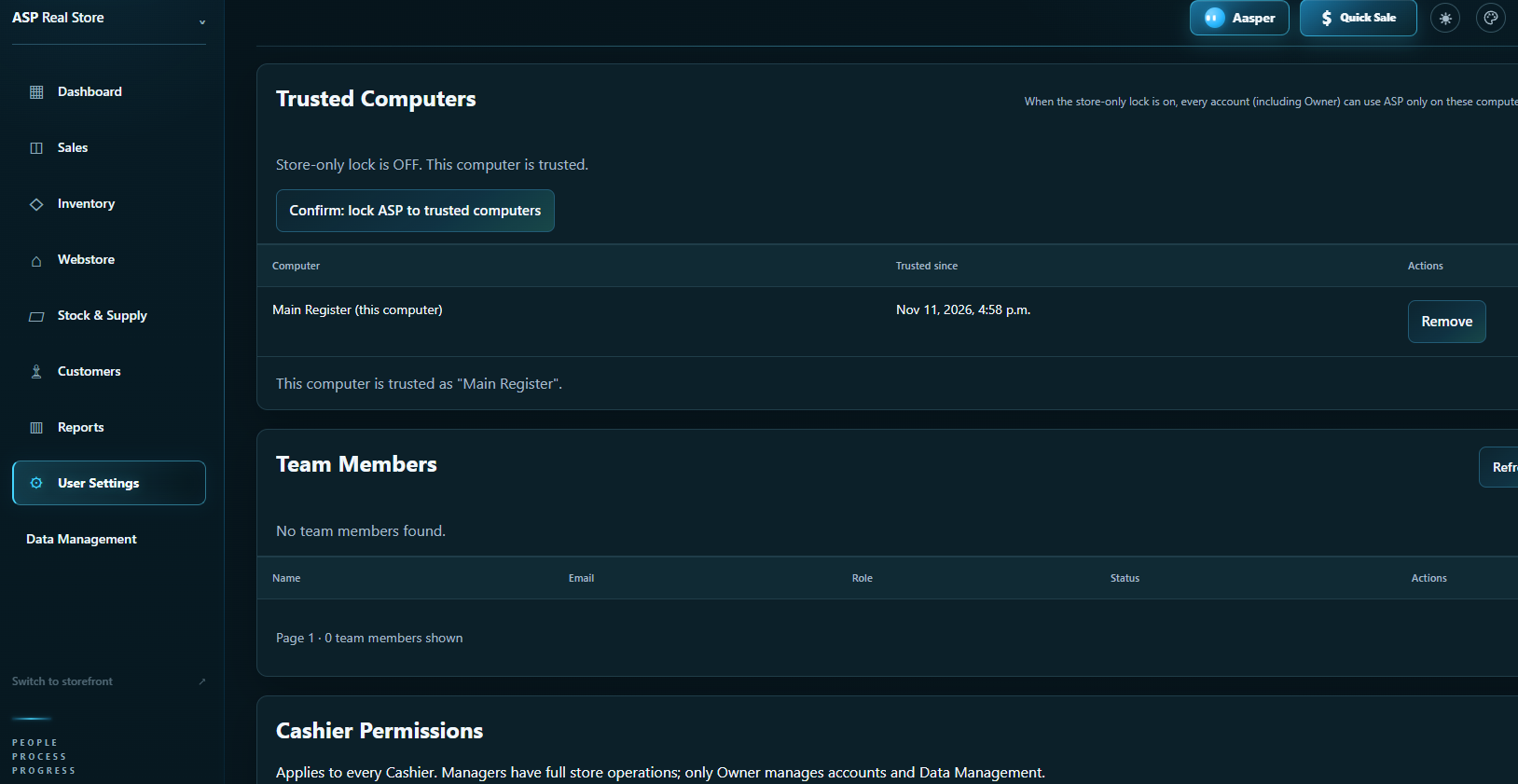
Check that your computer appears in the list. If you want to restrict access, click Turn store-only lock on.
Click Confirm: lock ASP to trusted computers.
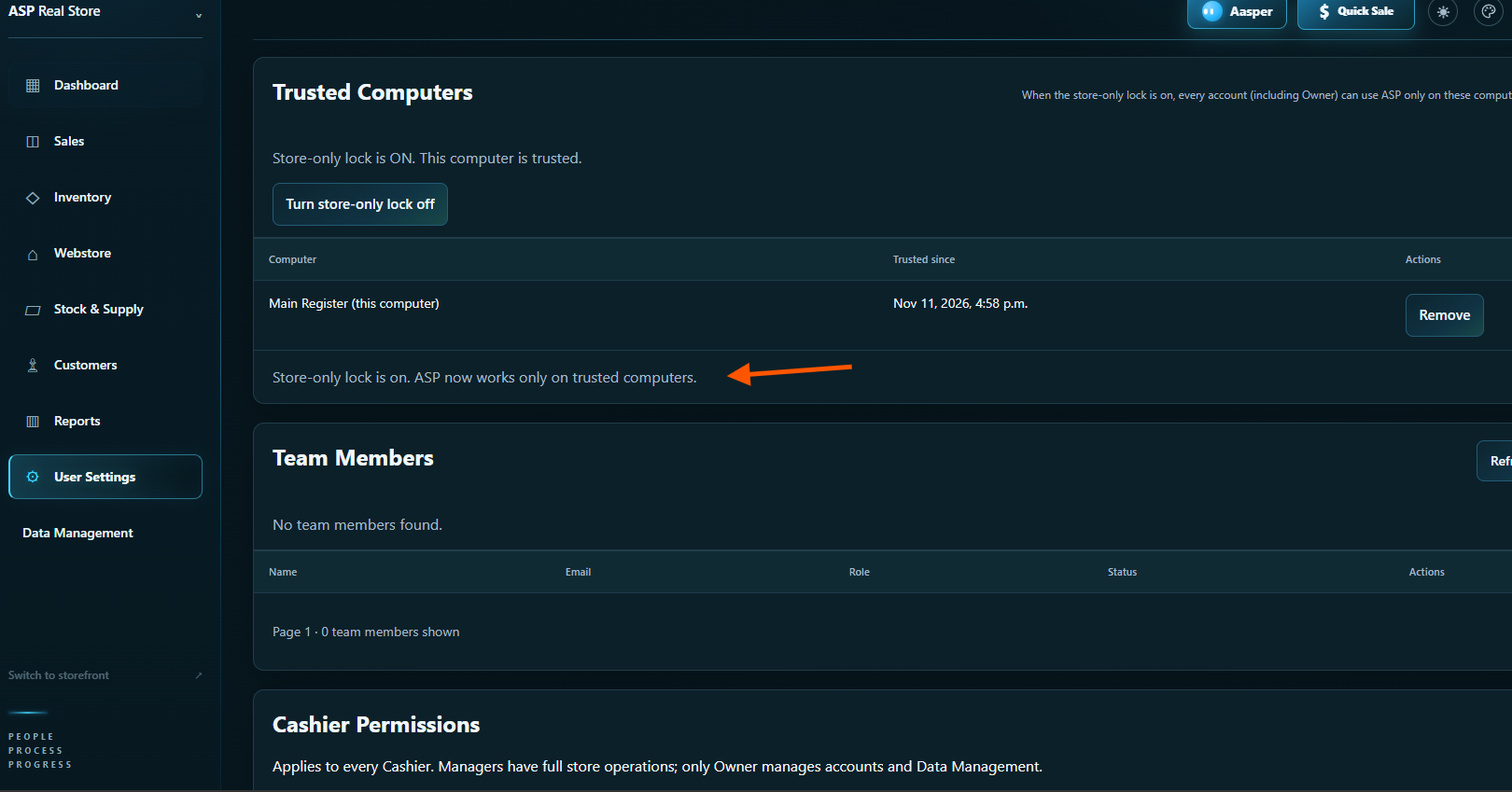
Check that Store-only lock is ON. Everyone, including the owner, can now use ASP only on trusted computers.
To remove a computer you no longer use, open User Settings and remove it from Trusted Computers.